
Receive a supplier shipment
See the shipments your suppliers are sending, resolve a price difference, mark a shipment received so the copies join your stock, and record payment.
When a supplier builds a shipment in their portal, it appears on your Supplier shipments page. It stays Open, and the supplier can still change it, until you mark it received. Receiving is the moment the copies go into your stock and the cost is recorded.
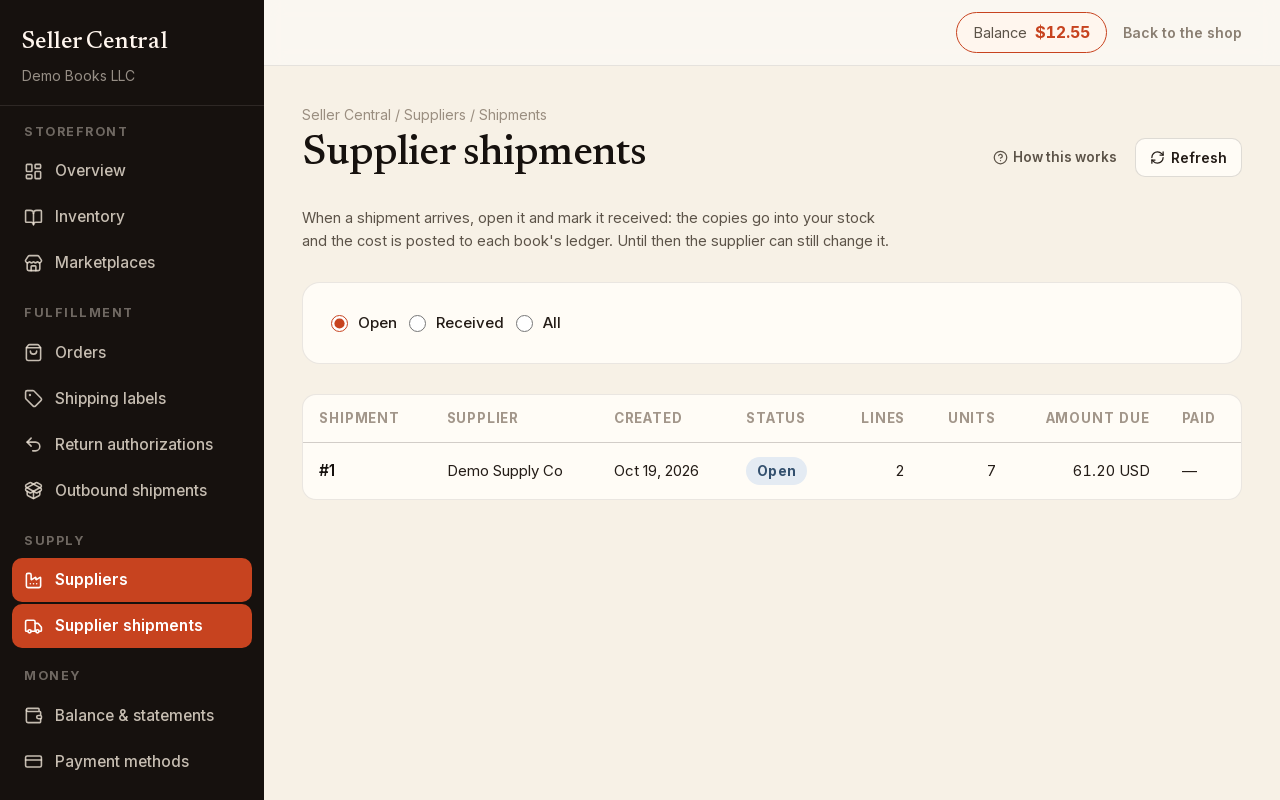
The shipments list
Filter by Open, Received or All. Each row shows the shipment number, the supplier, the date created, its Status (Open, or Received with the date), the number of lines and units, the Amount due, and whether it is Paid. A row marked Direct to Bookface is going straight to our warehouse. A badge such as 2 price differences means the supplier is charging something other than what you have on your inventory row.
Click the shipment number to open it.
Check the prices
The Books on this shipment table shows each book with the quantity Sent, the Supplier price (their unit cost, any discount, and the resulting price each) and Your price (the cost, currency and discount on your inventory row). A line whose price differs from your row is highlighted.
You can leave a difference as it is; the cost recorded at receipt is always what the supplier is charging on this shipment. If the new price is the one you want to keep, click Accept supplier price on the line and it is copied onto your inventory row.
Mark the shipment received
- In the Received column, enter the copies that actually arrived on each line. It starts at the quantity sent.
- Under Receive this shipment, set the Date received (today by default) and add a Note for your records if you like.
- Click Mark received, then Receive.
Your stock goes up by the copies received, each book's cost is posted to your inventory ledger at the supplier's price, and the shipment is frozen: neither you nor the supplier can change it again. The page confirms how many copies were added.
A shipment marked Direct to Bookface has no receive form. We receive it at the warehouse and the copies go into your Bookface stock; there is nothing for you to do on it.
Record payment
Once a shipment is received, a Payment card appears.
- Set the Date paid.
- Click Mark paid.
The list then shows Paid with the date. If you marked it by mistake, open the shipment and click Mark unpaid. Paying the supplier happens outside Bookface; this records that you did.
Before the shipment arrives
An open shipment is the supplier's to edit. If something on it is wrong, ask the supplier to change it in their portal before you receive it. The quantity a supplier can send is capped at what you still need for each assigned book, so a shipment never overfills a listing. See Assign books to a supplier.