
Add a book
List one copy by ISBN, set its condition, quantity, SKU and a Bookface price, and add any other ISBNs the same copy sells under.
Open Inventory in the Seller Central menu and click List a book. The form has two steps. To add many books at once, import a file instead.
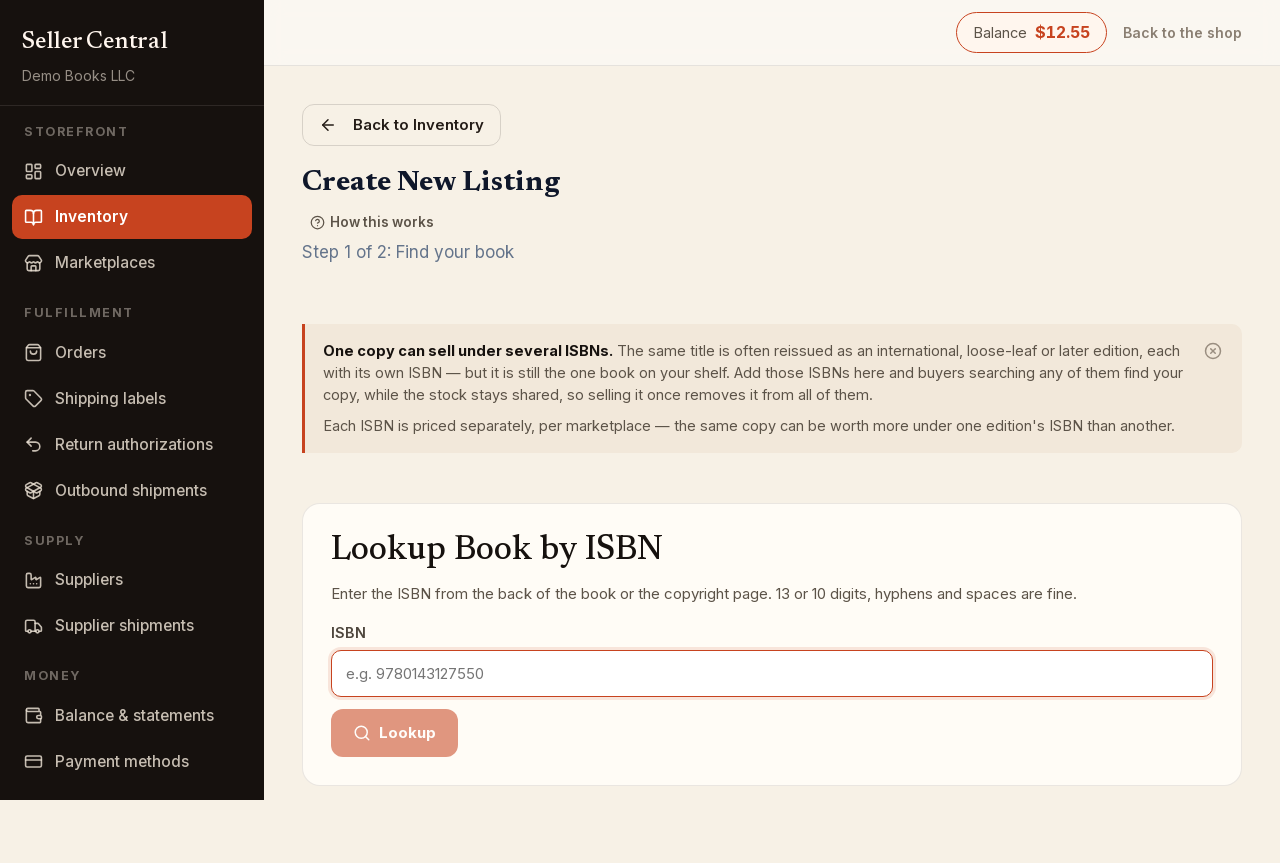
Step 1: Find your book
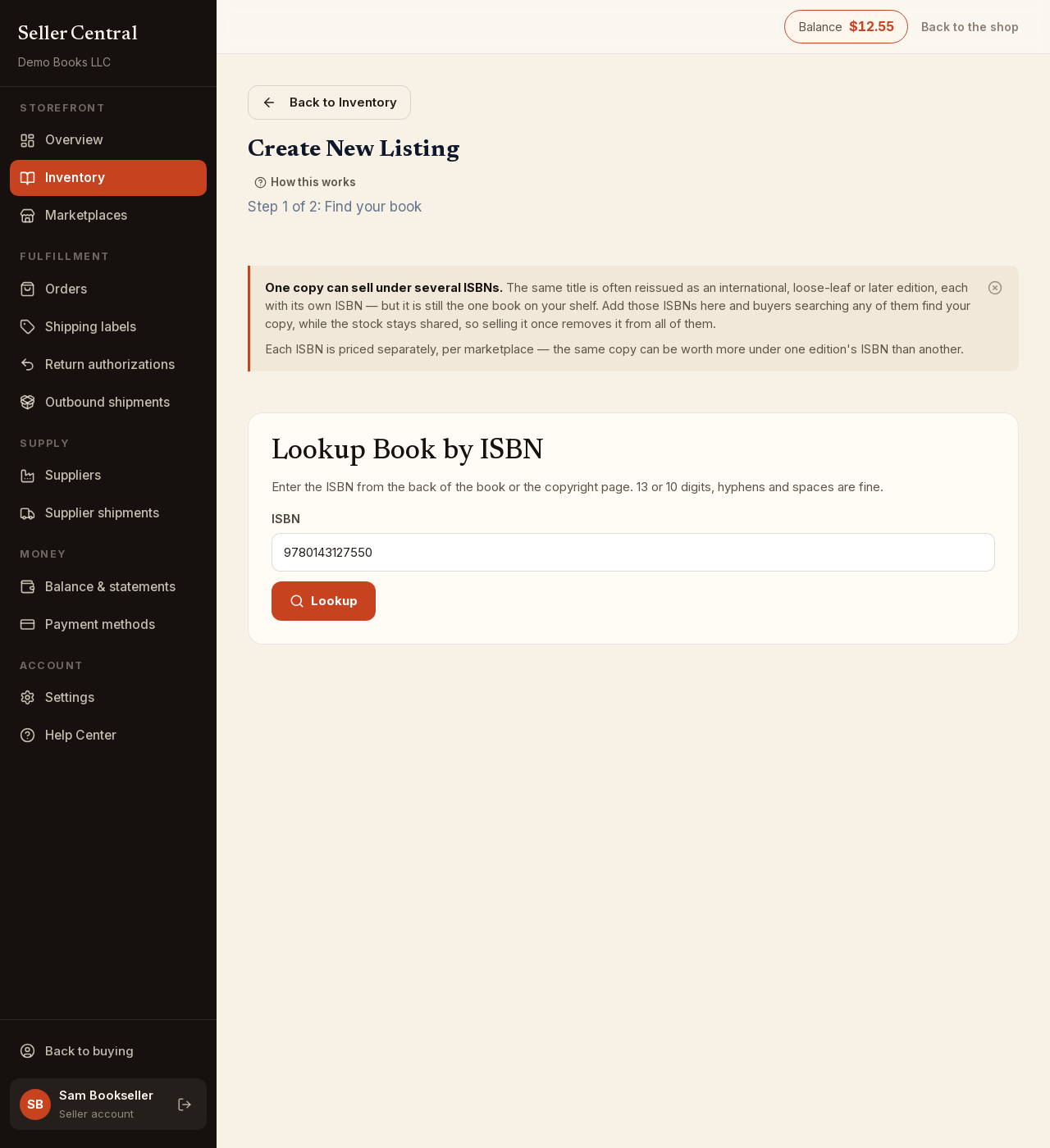
- Under Lookup Book by ISBN, type the ISBN from the back of the book or its copyright page. 13 or 10 digits, with or without hyphens and spaces, are all fine.
- Click Lookup.
If we know the book, step 2 opens with its cover, title, author and publisher. If we have no record for the ISBN, step 2 opens with a Tell us about this book section instead: enter the Book Title and Author(s) as printed on the cover (click + Add another author for more than one). Click Change ISBN at the bottom at any time to go back.
Step 2: Configure listing details
Under Condition & Primary Pricing:
- Choose the Item Condition: New, Used - Like New, Used - Very Good, Used - Good, Used - Acceptable or Rare / Collectible.
- Enter the Quantity you hold. 0 is allowed: the listing is created but has nothing to sell until you change it.
- Enter a SKU, or leave it blank to use the listing number. It must be unique among your listings and is the SKU the listing carries on external marketplaces — see SKUs explained.
- Tick International edition if this copy is an international (global) edition.
- Write a Public Item Description of up to 500 characters. Buyers read it, so describe this exact copy.
Under Prices for this ISBN, enter what the copy sells for on each marketplace under this ISBN. The @Bookface price is required; enter 0 if you are not ready to price it and the book simply is not offered for sale until you do. Other marketplaces show no price yet until you enter one.
The same copy may sell under several ISBNs — an international, loose-leaf or re-issued edition of the same title. Click + Add another ISBN to add one; each gets its own Recommended SKU and its own prices, and all share this listing's stock, so selling the copy once removes it everywhere. A duplicate ISBN is flagged and must be removed before you can save.
Under Offered Shipping Options, free Standard Shipping is always on. Tick Expedited Shipping or Express Shipping to also offer the faster services at the rates shown.
Under Internal Notes, add private reference notes that buyers never see.
Click Create Listing. The page confirms Listing created successfully! and returns you to your inventory.
What is set later
Cost price, price limits and the required stock level are not on this form. A new listing starts with a required stock level of 0; open the listing afterwards to set Unit Price under Cost & Price Limits or a Required Stock Level under Fulfillment & Stock Management — see edit a listing.