
Work your orders
Find the orders waiting to ship, mark copies shipped with a tracking number, and see which copies Bookface ships for you.
Every sale you make, on Bookface or anywhere else you have entered, is on the Orders page in Seller Central. The page opens on the orders that still need shipping.
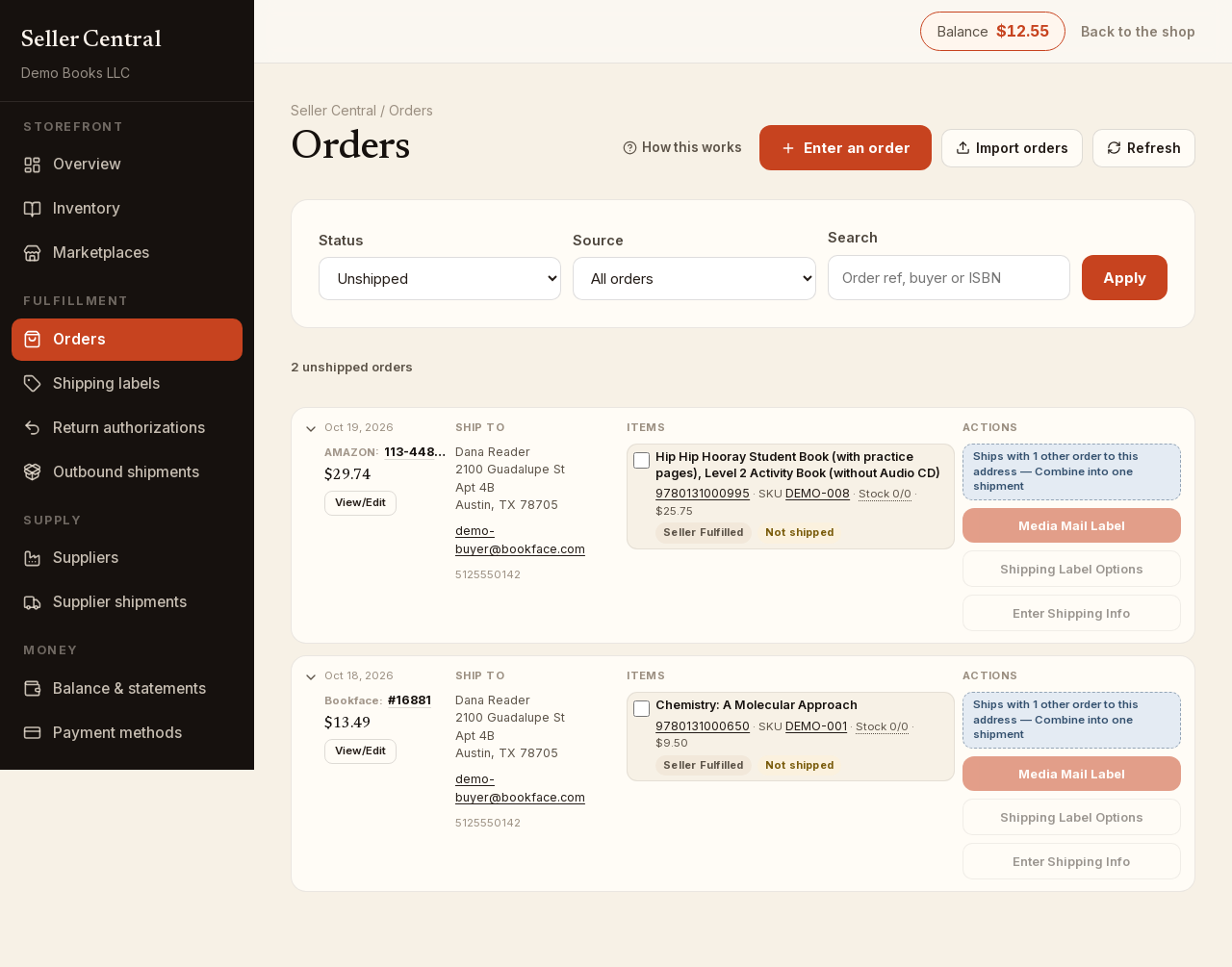
What the list shows
Each order is one card with four columns: the order (date, marketplace, reference, total), the full ship-to address, the items, and the actions. The lists are built from each copy's own state, so an order appears under Unshipped while any copy is still waiting, and under Shipped once nothing is left to send.
Use the filters at the top: Status (Unshipped, Shipped, Refunded, Partly refunded, Dropship Problems, Any status), Source (All orders, Bookface storefront, External marketplaces) and Search by order reference, buyer or ISBN. Press Apply.
Each copy carries two badges. The first says who ships it: Seller Fulfilled, Bookface Fulfilled or Dropshipped. The second says where it is: Not shipped, Label bought, Preparing Shipment, the tracking number once it has shipped, Refunded or Returned.
Copies held at Bookface
A copy marked Bookface Fulfilled is one we hold in our warehouse. We pick, pack and ship it; you cannot buy a label for it or mark it shipped. It shows Preparing Shipment until it goes out, then the tracking number appears on the badge.
Mark your own copies shipped
If you post a copy yourself, you can either buy a label on the spot (the label marks the copy shipped and records the tracking number for you) or enter the tracking number from a label you bought elsewhere.
- Tick the checkbox beside each copy you are sending in one parcel.
- In the Actions column, click Enter Shipping Info.
- Type the Tracking number and the Carrier (USPS is filled in by default).
- On an order from another marketplace, tick Email Buyer Shipping Info if you want us to send the buyer the tracking details. Bookface buyers are emailed automatically.
- Click Mark copies shipped.
To buy postage instead, use Media Mail Label or Shipping Label Options in the same column. See Print shipping labels.
Combine orders to one address
When two or more unshipped orders on the page go to the same buyer and address, each shows a chip reading Ships with 1 other order to this address — Combine into one shipment. Click it to see what ships, the combined weight and one Media Mail price, then buy a single label for all of them.
Open an order
Click the order reference or View/Edit to open the order on its own page. There you can edit a copy's Carrier, Tracking number and Shipped state, refund a copy, and refund a label you bought. On an order from another marketplace you can also correct the buyer's address and the line details.