
Edit a listing
Change a listing from the inventory list with the quick editor, or open the full edit page with its collapsible sections.
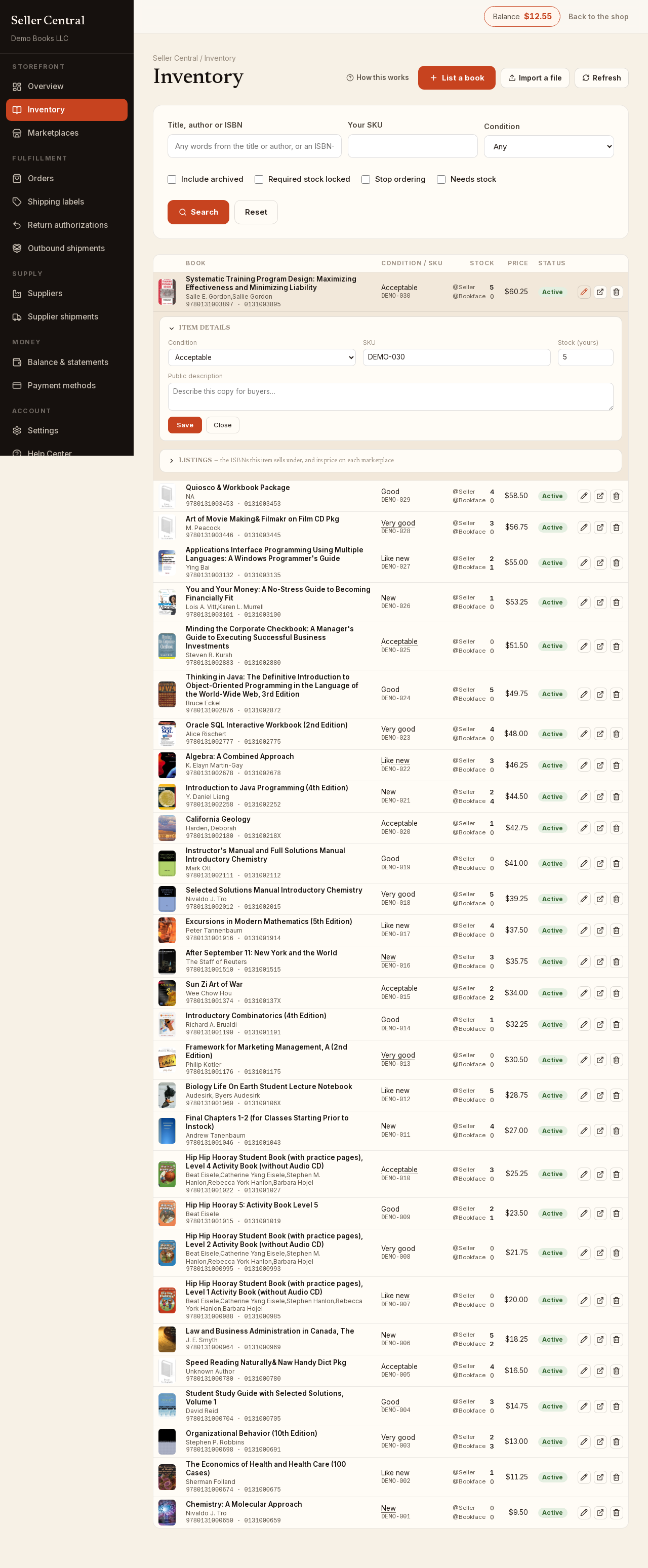
Every row in Inventory has two edit controls at its right.
Quick edit on the list
Click the pencil (Edit this item and its listings) to open an editor under the row.
- Item Details: Condition, SKU, Stock (yours) and Public description. Click Save to write them and close the editor, or Close to leave without saving. Changing or clearing the SKU warns that the item will be re-listed on external marketplaces under the new SKU.
- Listings: the ISBNs this item sells under. Open an ISBN to switch Selling this ISBN on or off, type a price beside each marketplace (it saves when you leave the box), and tick sell here where you want it offered. Bookface has no checkbox; selling there is always on.
The full edit page
Click the open-in-tab icon (All fields — opens the full listing form in the edit tab). The page opens in a separate tab, reused for every listing you edit this way, so your inventory list stays put.
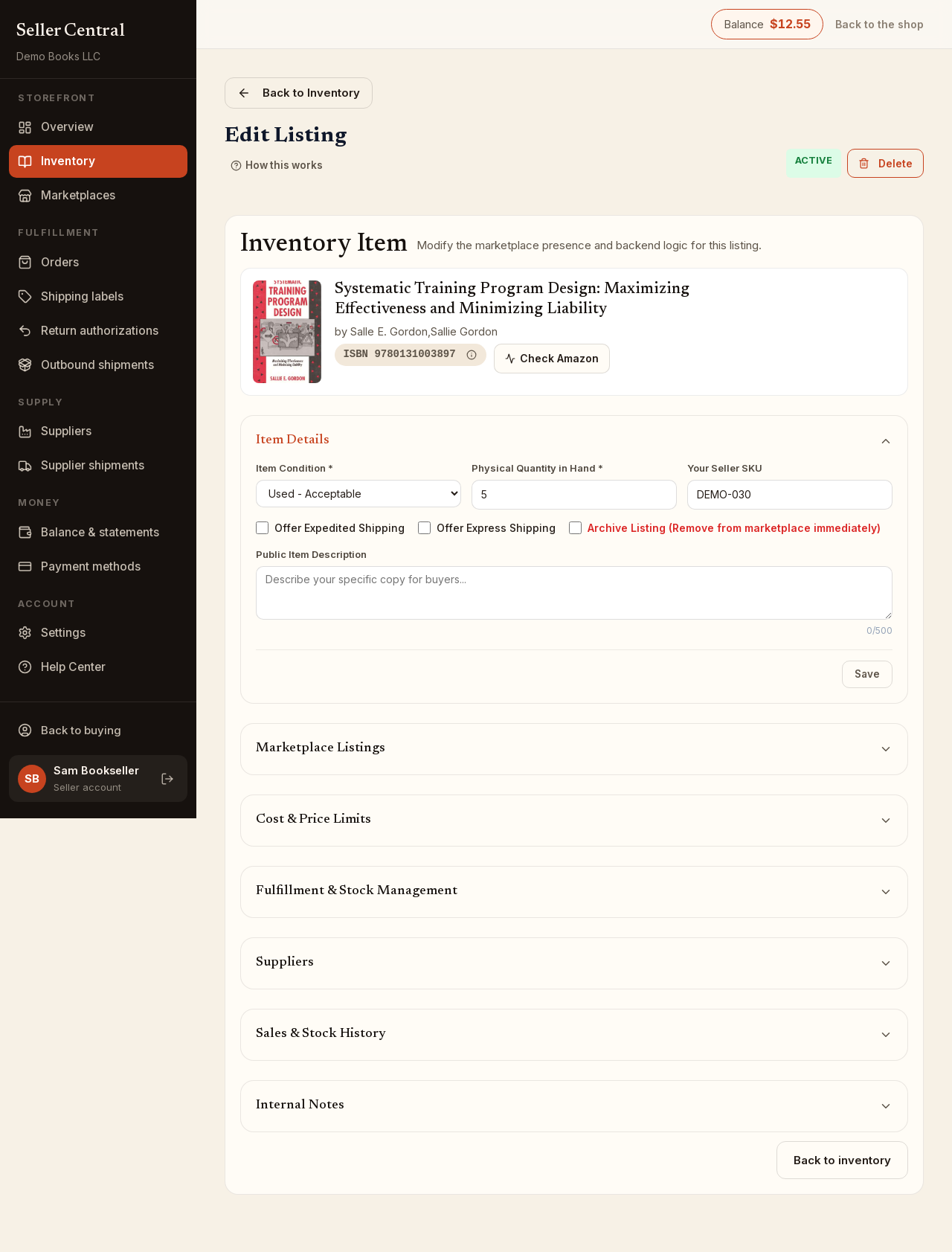
The header shows Edit Listing, an ACTIVE or ARCHIVED badge, and Delete. Beside the book's ISBN sits Check Amazon — see check Amazon price and rank.
Every section starts collapsed; click its title to open it. Each has its own Save button, live only when something in it has changed, and the title reads Unsaved changes until you save. Saving one section never touches another.
- Item Details — Item Condition, Physical Quantity in Hand, Your Seller SKU, Offer Expedited Shipping, Offer Express Shipping, Archive Listing and the Public Item Description.
- Marketplace Listings — the ISBNs this item is offered under, each with a price on every marketplace and a Selling / Paused everywhere switch. Add an ISBN with Add ISBN; remove any except the primary one with the trash icon. Changes here save as you make them.
- Cost & Price Limits — Unit Price (what you paid), Publisher's Discount, Markup Percentage, Min Sale Price and Max Sale Price.
- Fulfillment & Stock Management — Required Stock Level, Lead Time (Days), Lock Required Stock Level and Stop Inbound Procurement; see required stock and stop ordering.
- Suppliers — choose a supplier and click Assign; assignments save at once. See assign books to a supplier.
- Sales & Stock History — read-only counters updated nightly: Units sold, Last sale, Days in stock without a sale, Days out of stock (current run), Total days in stock and Total days out of stock.
- Internal Notes — private notes, hidden from buyers.
Deleting and archiving
Delete permanently removes a listing that has no history. If the listing has been sold or otherwise referenced, a dialog titled This listing cannot be deleted explains why and offers Archive instead or Keep it active. An archived listing keeps its history and stops selling; it appears in the list when you tick Include archived. You can also archive from Item Details.