
Stock at the Bookface warehouse
How to send your inventory to Bookface for free warehousing, and how to use Outbound shipments to get warehoused copies back, forward them, or send them to Amazon FBA.
We store your inventory free of charge and ship it for you when it sells, on Bookface or on any order you enter. Books arrive as they are: nothing to pre-pack, nothing to label.
Sending stock to Bookface
Send your books to our fulfillment center by parcel, or by air or ocean freight from any country. We are a licensed, bonded and insured importer, so freight can come straight to us. For freight arrangements, use Contact us about freight on the Become a seller page, which opens our contact form.
Once we shelve your books, the copies show in the Bookface column of each listing's stock, and they sell as Bookface Fulfilled on the Orders page.
Getting stock back out
Use Outbound shipments to ask us to send warehoused copies back to you, forward them to someone else, or prepare them for Amazon FBA. A draft shipment holds no stock and blocks no sale until you submit it.
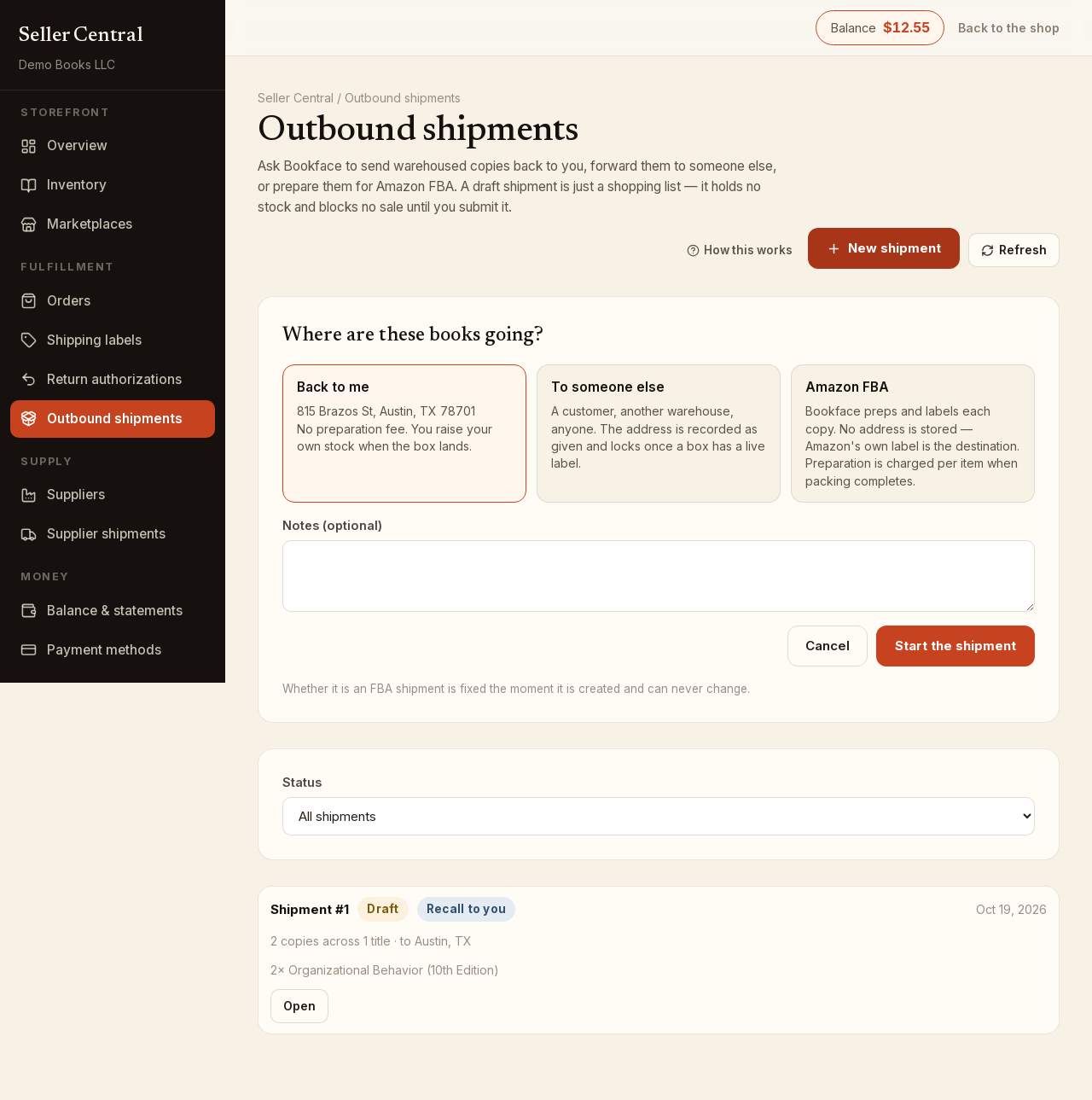
Start a shipment
- Click New shipment.
- Under Where are these books going?, pick one:
- Back to me: your registered address. No preparation fee.
- To someone else: enter the Name, Address, City, State, ZIP and optional phone. The address locks once a box has a live label.
- Amazon FBA: we prep and label each copy. No address is stored; Amazon's own label is the destination. Preparation is charged per item when packing completes. Enter the Amazon shipment reference if you have it.
- Add Notes if needed and click Start the shipment. Whether a shipment is FBA is fixed when it is created.
Add books and submit
- Under Add books, search by Title or ISBN-13, set Copies on a result and click Add. Only copies we are physically holding can go in; Remove one and Remove all take them off again.
- For an FBA shipment, click Upload barcode sheet under Amazon paperwork. It is required before you can submit.
- Click Submit this shipment.
Submitting is the moment stock leaves the warehouse count, and it is all or nothing. If any title sold while the draft sat open, nothing moves: the page lists each short book, and Trim to what's left removes the missing copies so you can submit again.
After you submit
The shipment is closed to changes and moves through Submitted, Packed and Shipped. We pack and weigh the boxes, and postage is priced on the real packed weight; the Boxes card shows each box's copies, weight and tracking number. For FBA, the Preparation fee card shows the per-item rate fixed at creation and the estimated total, charged when packing completes and not refunded if the shipment is canceled afterwards.
Cancel a shipment
Click Cancel this shipment on a draft or submitted shipment. Canceling a draft costs nothing; canceling a submitted shipment puts the copies back into warehouse stock. Once we have packed it, only Bookface can cancel. The Status filter (Draft, Submitted, Packed, Shipped, Canceled) finds older shipments.