
Assign books to a supplier
Choose which of your listings each supplier can see and ship, from the Suppliers page or from a listing's edit page.
A supplier only sees the books you assign to them, and only while your required stock level for a book is above what you hold. Assigning a book is what puts it in their portal; removing the assignment takes it out again. You can assign from the Suppliers page, one supplier at a time, or from a listing's edit page, one book at a time.
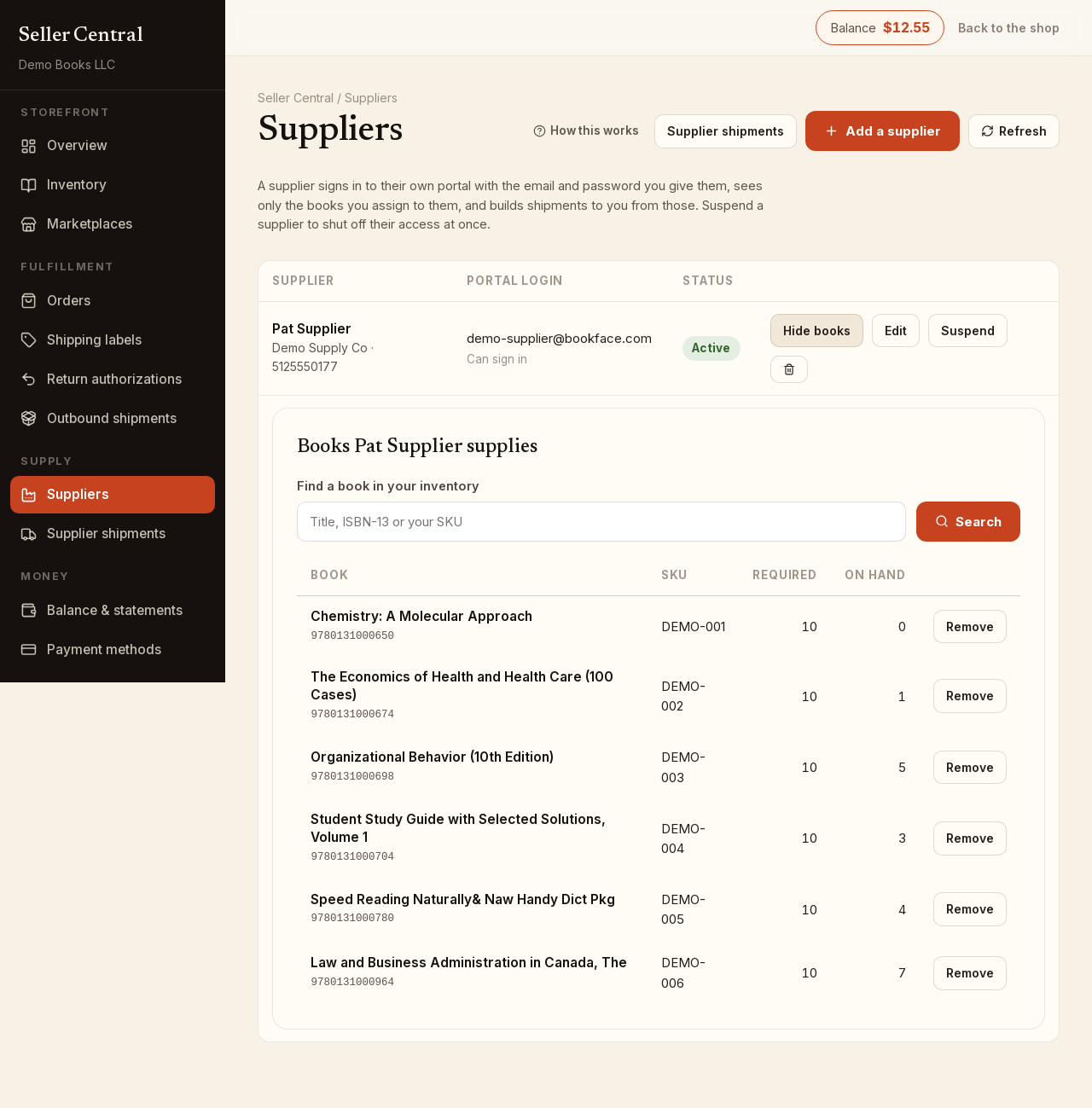
From the Suppliers page
- Open Suppliers and click Assigned books on the supplier's row. A panel titled Books [name] supplies opens under the row.
- Under Find a book in your inventory, type a title, an ISBN-13 or your SKU and click Search. An ISBN-13 finds that exact book; anything else is matched against your SKUs and titles.
- Click Assign on the result. A book already assigned to this supplier shows Assigned instead.
- Repeat for every book this supplier provides. Click Hide books to close the panel.
The table of assigned books shows each title with its ISBN, your SKU, the Required stock level and the copies On hand (your stock plus what we hold). Click Remove to take a book away from the supplier.
From a listing's edit page
- Open Inventory, find the listing and open its edit page.
- Scroll to the Suppliers section.
- Pick a supplier from Choose a supplier… and click Assign. Only active suppliers that are not yet assigned appear in the list.
- To remove one, click the x on its badge.
Assignments save at once; they do not wait for the page's Save button. If you have no suppliers yet, the section links to the Suppliers page so you can add one.
A badge for a suspended supplier is marked suspended: the assignment stays, but that supplier cannot sign in to see it until you reactivate them.
What assignment controls
- Only assigned suppliers see the book in their portal.
- A book appears in a supplier's list only while the required stock level is above what you hold. When you have enough, it drops out of their list until stock runs down again.
- A supplier can put a book on a shipment only up to the quantity you still need, counting what is already on its way in other open shipments.
- Several suppliers can be assigned to the same book.
The required stock level is set on the listing itself; see Edit a listing.