
Find a book in your inventory
Search your inventory by title, author, ISBN, SKU or condition, filter by stock settings, and read the list.
Open Inventory in the Seller Central menu, or go to /seller/inventory. The filters sit above the table; the table shows 100 books a page.
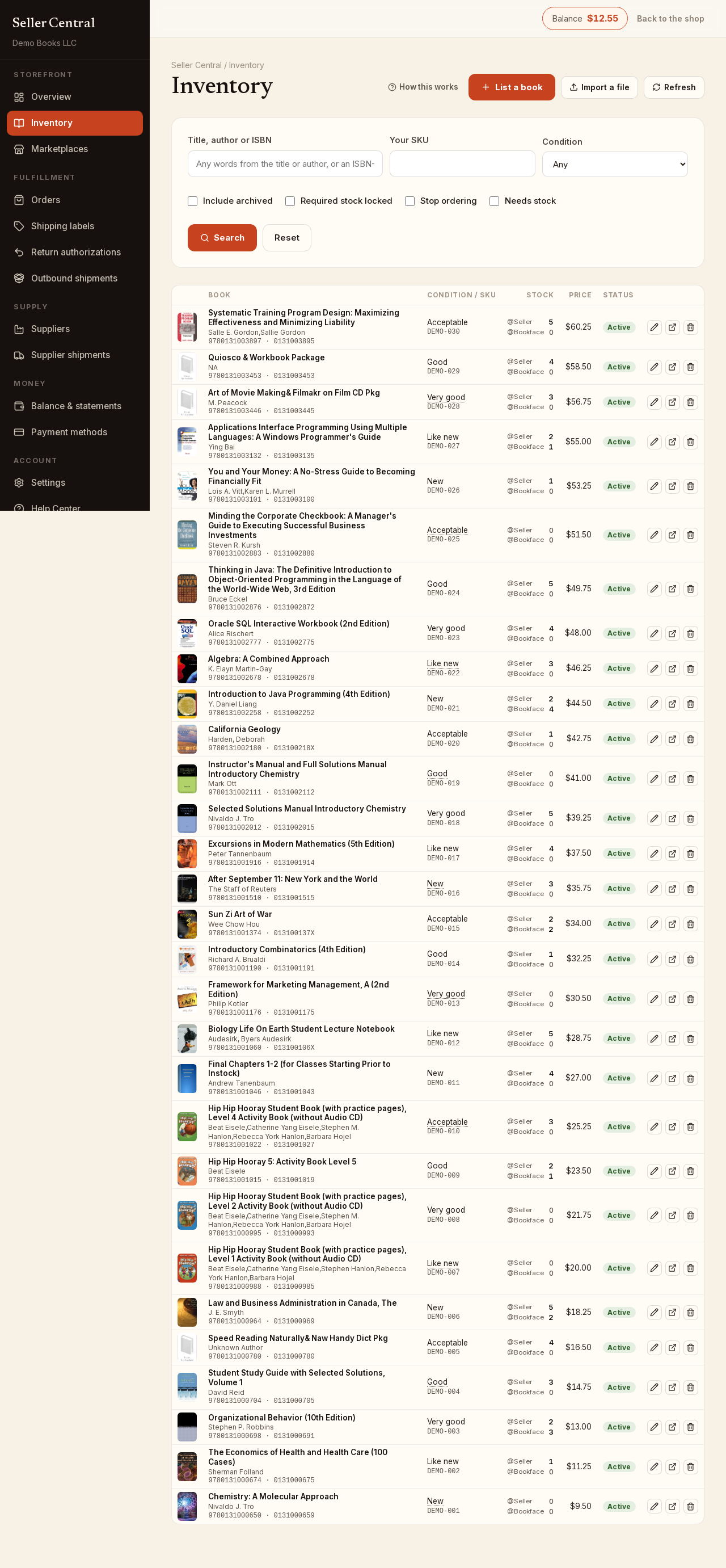
Search
- Type in Title, author or ISBN. Any words from the title or author work, and so does an ISBN-13 or an ISBN-10.
- To find a listing by your own code, type it in Your SKU.
- To narrow by Condition, choose New, Used - Like New, Used - Very Good, Used - Good, Used - Acceptable or Rare / Collectible. Any is the default.
- Tick any of the checkboxes:
- Include archived — archived listings are left out until you tick this.
- Required stock locked — only listings whose required stock level you have locked.
- Stop ordering — only listings with Stop Inbound Procurement on.
- Needs stock — only listings whose required stock level is above what you hold and what your suppliers have on open shipments.
- Click Search. Reset clears every filter and shows everything again.
If nothing matches, the page says Nothing here and offers List a book and Import a file.
Reading the table
Each row shows:
- The cover, title, author and the ISBN-13 (and the ISBN-10 when the catalog has one).
- Condition / SKU — the condition, with the public description in a pop-up when the listing has one, and your SKU under it (or no SKU).
- Stock — two counts: @Seller, the copies you hold, and @Bookface, the copies in the Bookface warehouse. The warehouse count is read-only; it changes when a shipment arrives or an order goes out.
- Price — the Bookface price of the listing's primary ISBN. Prices for other ISBNs and marketplaces are in the editor.
- Status — Active or Archived.
- The row actions: the pencil opens the quick editor, the open-in-tab icon opens the full edit page, and the trash icon deletes the listing (or offers to archive it when it has history). See edit a listing.
Paging and refreshing
When there is more than one page, Page X of Y · N books appears under the table with Previous and Next. Click Refresh at the top to reload the current page, and List a book or Import a file to add more.
Still have a question?