
Print shipping labels
Buy USPS labels for the copies you ship, print them in batches, and refund a label you will not use. Postage comes out of your balance.
You buy labels for the copies you ship yourself. Postage is charged to your balance, the copies are marked shipped with the tracking number, and a Bookface buyer is emailed. Copies we ship from the warehouse never need a label from you.
Buy a label from the Orders page
- On Orders, tick the copies going in one parcel.
- Click Media Mail Label in the Actions column. The button shows the price before you click, and the label is bought at once.
- To choose another service, click Shipping Label Options instead. Check the Weight (lb) (we fill in a weight from the books), pick a Shipping service from the list, and click Generate Label. The price is on the button.
- Click Print the label, or print it later from the Shipping labels page.
Opening the options costs nothing; only Generate Label spends money. If your balance cannot cover the label, the page tells you the shortfall and links to Add funds.
For the full form, click Open the label page. It lists the copies on the label, offers other unshipped copies Also going to this address so one label can carry several orders, and shows every carrier rate after Get rates. Pick one and click Buy this label. The Sample label (printer test) checkbox creates a label with no postage for calibrating a printer; refund it afterwards to release the copies.
Print in batches
The Shipping labels page opens on To print: every label you have bought and not yet marked printed.
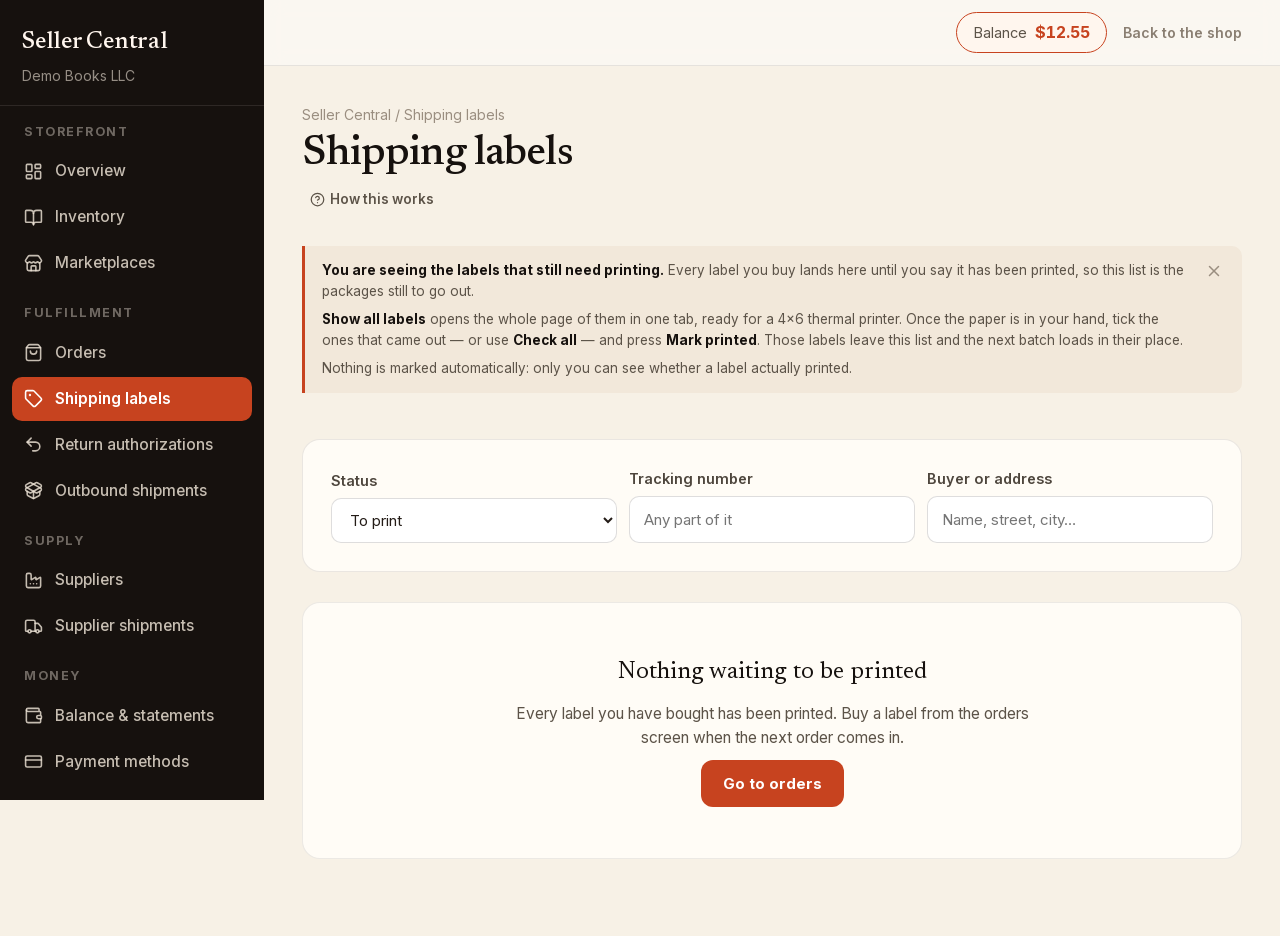
- Click Show all labels. One tab opens with every label on its own 4x6 page and the print dialog appears.
- Once the paper is in your hand, tick the labels that came out, or tick Check all.
- Click Mark printed. Those labels leave the list and the next batch loads.
Nothing is marked printed automatically, because only you can see whether a label came out. The tracking number on each row opens that label on its own, and Print prints just that one. If a label jammed or smudged, find it under Printed and click Back to unprinted; it rejoins the queue with the same tracking number and no new postage.
Label statuses
Use the Status filter to see labels in each state:
- To print (shown as Bought under All labels): bought, not yet printed.
- Printed: you marked it printed.
- In transit: the carrier has scanned it.
- Refund requested: a refund is waiting for the carrier to confirm.
- Refunded: the postage credit is on your statement.
Search by any part of a Tracking number or by Buyer or address.
Refund a label
A label you will not use can be refunded within 28 days as long as the carrier has not scanned it. Click Refund on the row (the button shows the amount) and confirm. The copies on it are released so you can buy a corrected label, and the credit reaches your balance once the carrier confirms.