
Add a supplier
Create a supplier with its own portal login, change its details or password, and suspend it rather than delete it.
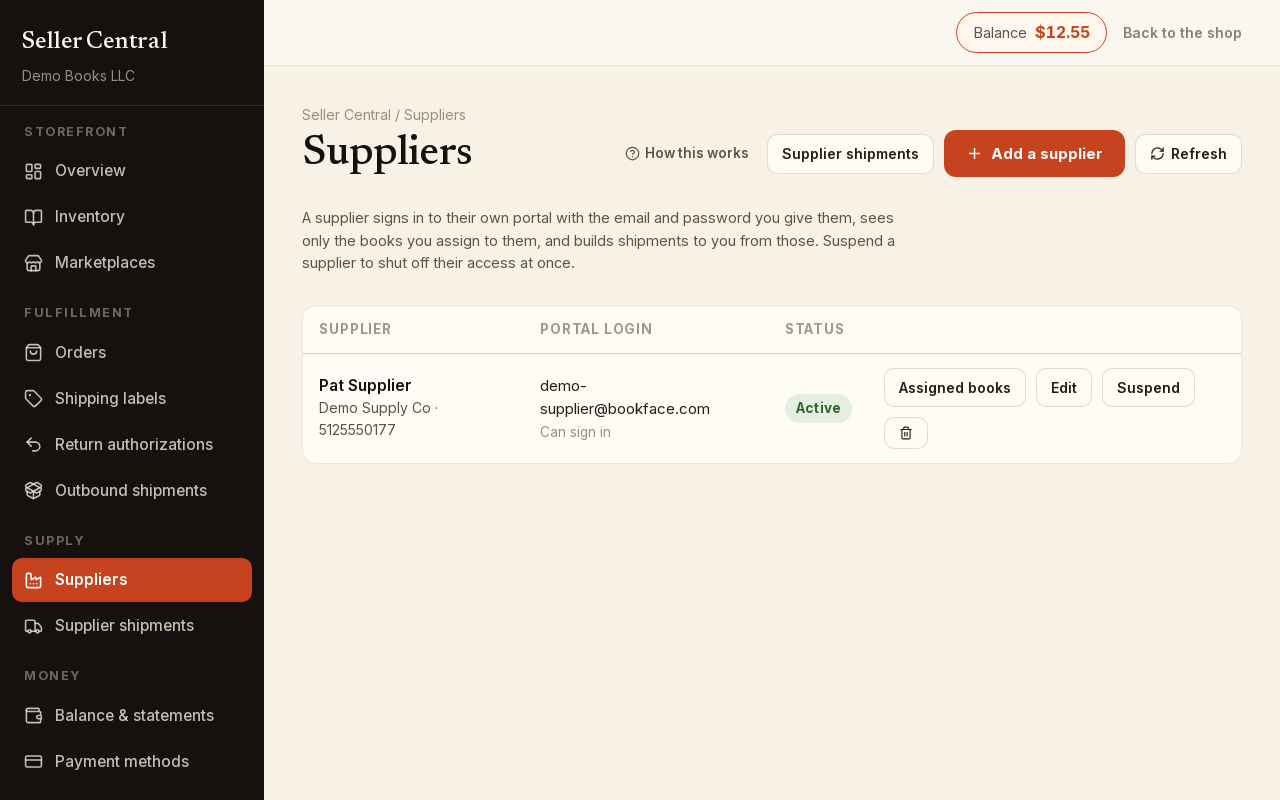
A supplier is a person or company you buy stock from. You give them an email and password for the supplier portal, where they see only the books you assign to them and build shipments to you from those. The Suppliers page is where suppliers are created and managed.
Add a supplier
- Open Suppliers and click Add a supplier.
- Fill in the Name. Company, Address, Phone and Website are optional.
- Enter the Portal email. This is what they sign in with, and it must be unique across Bookface.
- Enter the Portal password, at least 8 characters. It is stored hashed, so it cannot be read back later, only replaced.
- Click Add supplier.
The supplier can sign in to the portal as soon as both the email and password are set. The list shows their email under Portal login with Can sign in or No password set, and a Status of Active or Suspended.
Next, assign the books they supply. A supplier with no assigned books sees nothing in the portal.
Edit a supplier or change the password
- Click Edit on the supplier's row.
- Change any detail. To change their password, type a New password; leave it blank to keep the current one.
- Click Save.
Suspend a supplier
Suspending shuts off portal access at once and keeps everything on record.
- Click Suspend on the row.
- Confirm. The supplier is signed out immediately and cannot sign in until you click Reactivate.
Their assigned books and their shipments stay as they are. Suspend is the right choice whenever you only want to stop a supplier for now.
Delete a supplier
Deleting is permanent. Click the trash icon on the row, read the warning, and click Delete permanently only if you are sure. The supplier loses portal access and every book assigned to them is unassigned. A supplier that already has shipments on record cannot be deleted at all; suspend them instead.
What the supplier sees
In their portal, a supplier sees each assigned book with your SKU, the title, the price and discount on your inventory row, and the quantity you still need. They can only put a book on a shipment while you need more of it than you hold. How they build a shipment is covered in Create a shipment; what you do when it arrives is in Receive a supplier shipment.