
Import an Amazon or eBay order file
Upload the order report from Amazon or eBay, check the preview, and enter every ready order in one go.
Instead of typing marketplace orders one at a time, upload the order report you downloaded from Amazon or eBay. You see every order, what it takes from your inventory and who ships each copy before anything is entered.
Before you start
The import matches each order line to your inventory by SKU. On an Amazon report the sku column must match the SKU on your Bookface listing; on an eBay report it is the Custom Label column. A line whose SKU is not in your inventory is shown as Not in your inventory and that order is not entered.
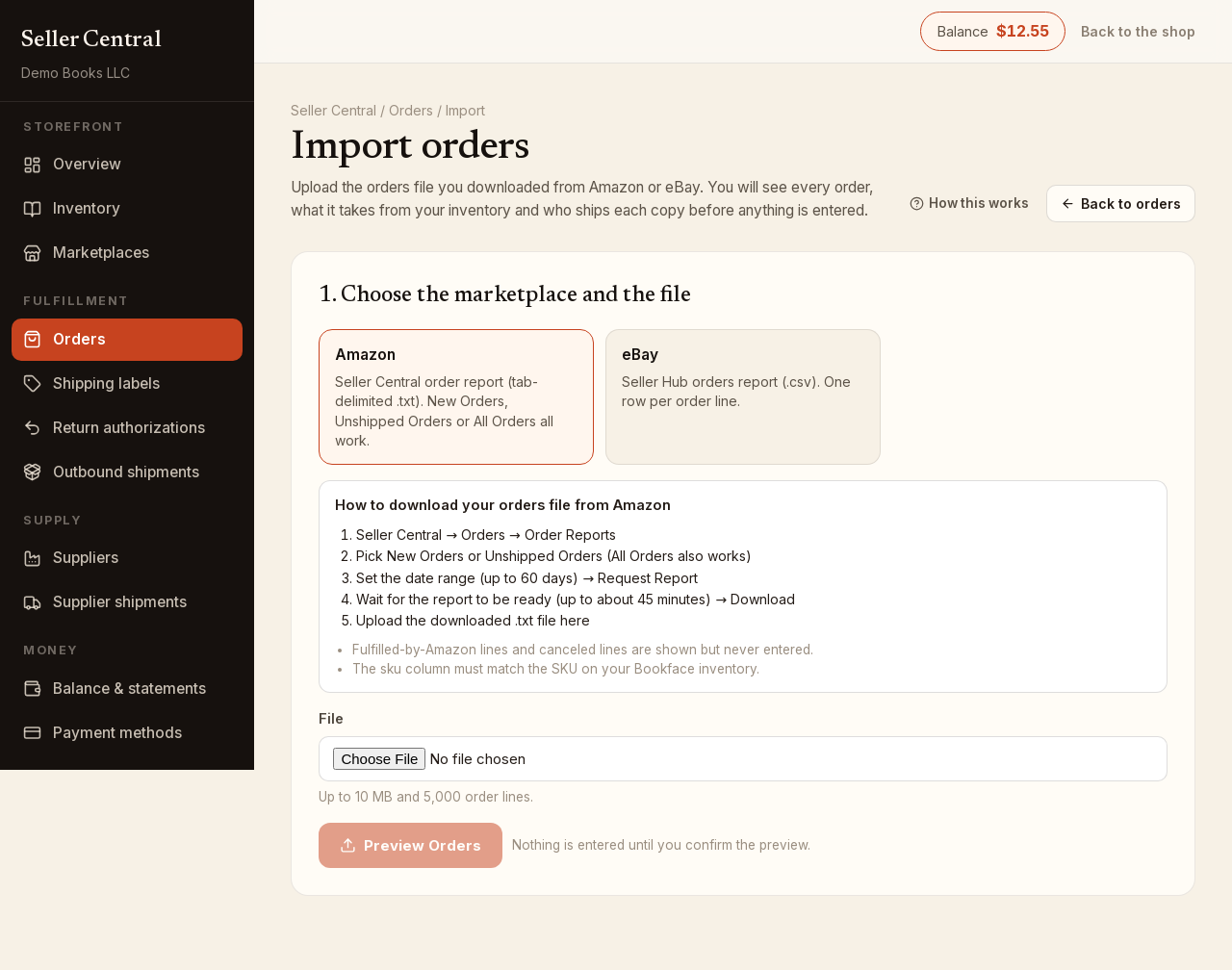
Step 1: choose the marketplace and the file
- Open Orders and click Import orders.
- Pick Amazon or eBay. The page lists how to download the report from that site.
- Amazon: Seller Central → Orders → Order Reports. New Orders, Unshipped Orders or All Orders all work. Upload the tab-delimited .txt file.
- eBay: Seller Hub → Orders → Manage orders → Download report, or Seller Hub → Reports → Download. Upload the .csv file.
- Choose the File (up to 10 MB and 5,000 order lines) and click Preview Orders.
Nothing is entered at this point.
Step 2: check the preview
The preview totals show Orders in file, Will be entered, Already entered, With problems, Copies shipped by Bookface and Copies shipped by you. Warehouse stock always ships first.
Below the totals, each order shows its reference, date, ship-to address and a badge:
- Will be entered
- Already entered — will not be entered: an order with that reference is already on file from an earlier entry or import, so it is skipped. Running the same report twice does not create duplicates.
- Problem — will not be entered: the reasons are listed on the order, for example a SKU not in your inventory or not enough stock.
Each line shows the SKU, the inventory item it matched, the quantity, Ships from (Bookface, you, or both), and the item and shipping amounts. On Amazon reports, lines fulfilled by Amazon and canceled lines are shown but never entered.
To fix problems, correct the file or your inventory, then click Choose a different file and preview again.
Step 3: enter the orders
- Click Enter Orders (N). The count is the number of ready orders; the others are left out.
- The copies on those orders are taken out of your stock straight away.
- The Done step lists each marketplace order next to its Bookface order number, and any order that could not be entered with the reason.
- Click Go to orders to start shipping, or Import another file.
Entered orders behave like any other order in your queue: copies we hold ship from Bookface, and you buy labels or enter tracking for the rest.