
Create a shipment
Start a shipment, add the books you are sending, and enter the amount due so the seller sees it at once.
A shipment is your record of one delivery to the seller: which books, how many, and what you are charging. The seller sees it as soon as you create it, and it stays open, and yours to change, until the seller marks it received.
Start a shipment
- Open Shipments in the sidebar.
- Click New shipment. An empty shipment opens, numbered in the page title, with the badge Open.
Add the books
- Under Add books, type part of a title, author or SKU in Title, author or SKU, or leave it blank to see every book you can send, and click Find books.
- Each result shows the book, its SKU, Price - Discount and Qty needed. The Qty box starts at the full quantity needed; change it if you are sending fewer.
- Click Add. The book appears under Books on this shipment and the page confirms, for example Added 3 × (title).
The quantity on a line cannot exceed Qty needed. Only books the seller still needs from you are offered, and the figure already counts copies on your other open shipments. A book can be on a shipment once; after you add it, its row reads On this shipment.
Each line starts with the price, currency and discount the seller has on file. If you are charging something different for this delivery, change the line, as explained in edit a shipment; the seller sees the difference.
Fill in the details
Under Shipment details:
- Boxes: how many cartons you are sending.
- Amount due: your invoice total for this shipment, and its Currency (USD, GBP, EUR, INR or YEN). The amount is yours to type; it is not calculated from the lines.
- Shipping straight to the Bookface warehouse: check this only if the seller has asked you to send this shipment to Bookface rather than to them.
- Notes for the seller: anything they should know, up to 500 characters.
- Click Save details. The page confirms Shipment saved.
Lines are saved as you add them; Save details saves the header fields only.
Back on the Shipments list
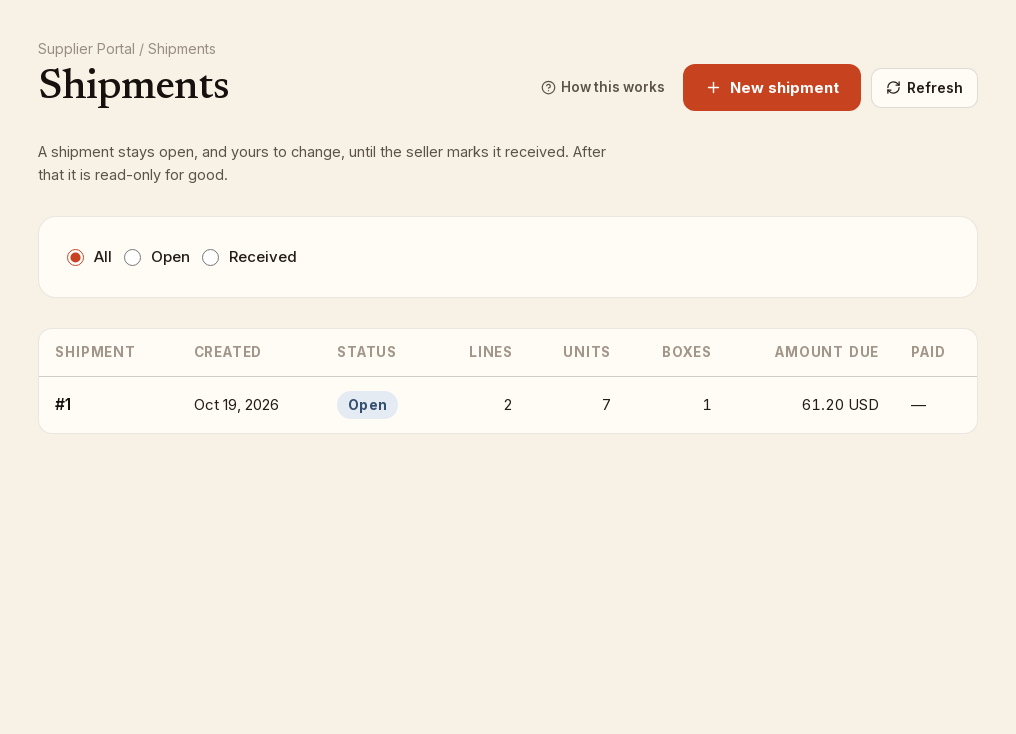
Every shipment you have created is listed with its number, the date Created, its Status, and its Lines, Units, Boxes, Amount due and Paid columns. Filter with All, Open or Received, and click a shipment's number to open it. The list shows the latest 200.