
Settings and your return address
Update your business details, choose the return address printed on your labels, and pause your listings while you are away.
Open Settings at the bottom of the Seller Central menu, or go to /seller/settings. The page has four tabs: Business Information, Return Address, Payouts and Vacation Settings.
The tabs share one form. Edits on any tab wait until you click Save settings at the bottom; Discard changes puts everything back, and the line You have unsaved changes reminds you that something is pending. Nothing saves on its own.
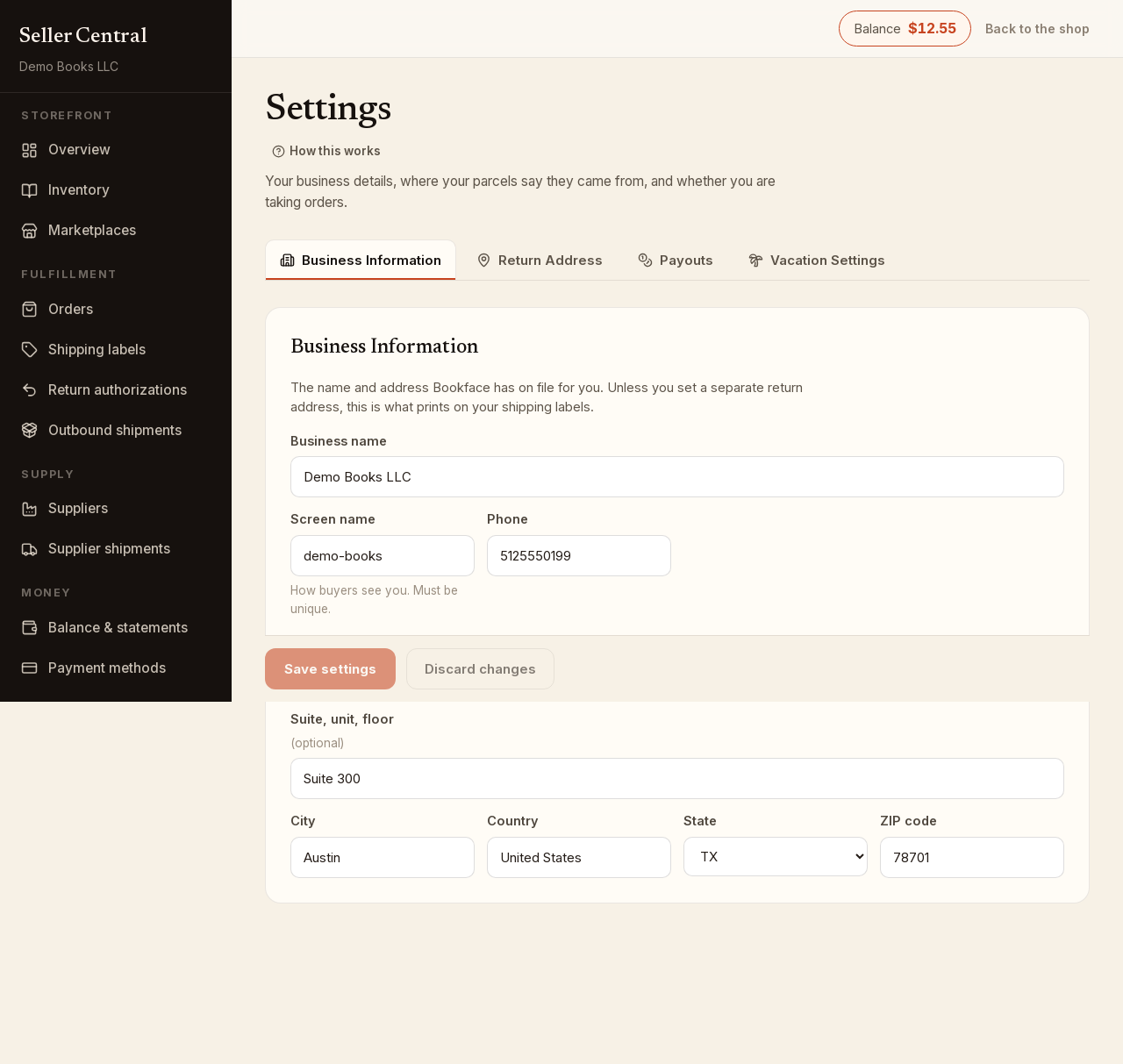
Business Information
This is the name and address we have on file for you.
- Business name and Screen name (how buyers see you; it must be unique).
- Phone.
- Street address, Suite, unit, floor (optional) and City.
- Country. For the US, choose a State and enter a ZIP code. For any other country, enter an optional State, province or region and a Postal code. Changing the country clears the state or region so you can enter the right one.
Return Address
Every label you buy prints a return address in its top-left corner, and that is where USPS sends a parcel it cannot deliver. It must be a US address, and it is always set: a seller with a US business address starts with that address, and a seller outside the US starts with Bookface's.
The badge beside the tab title tells you which is in use: Same as business, Your own address or Bookface's address.
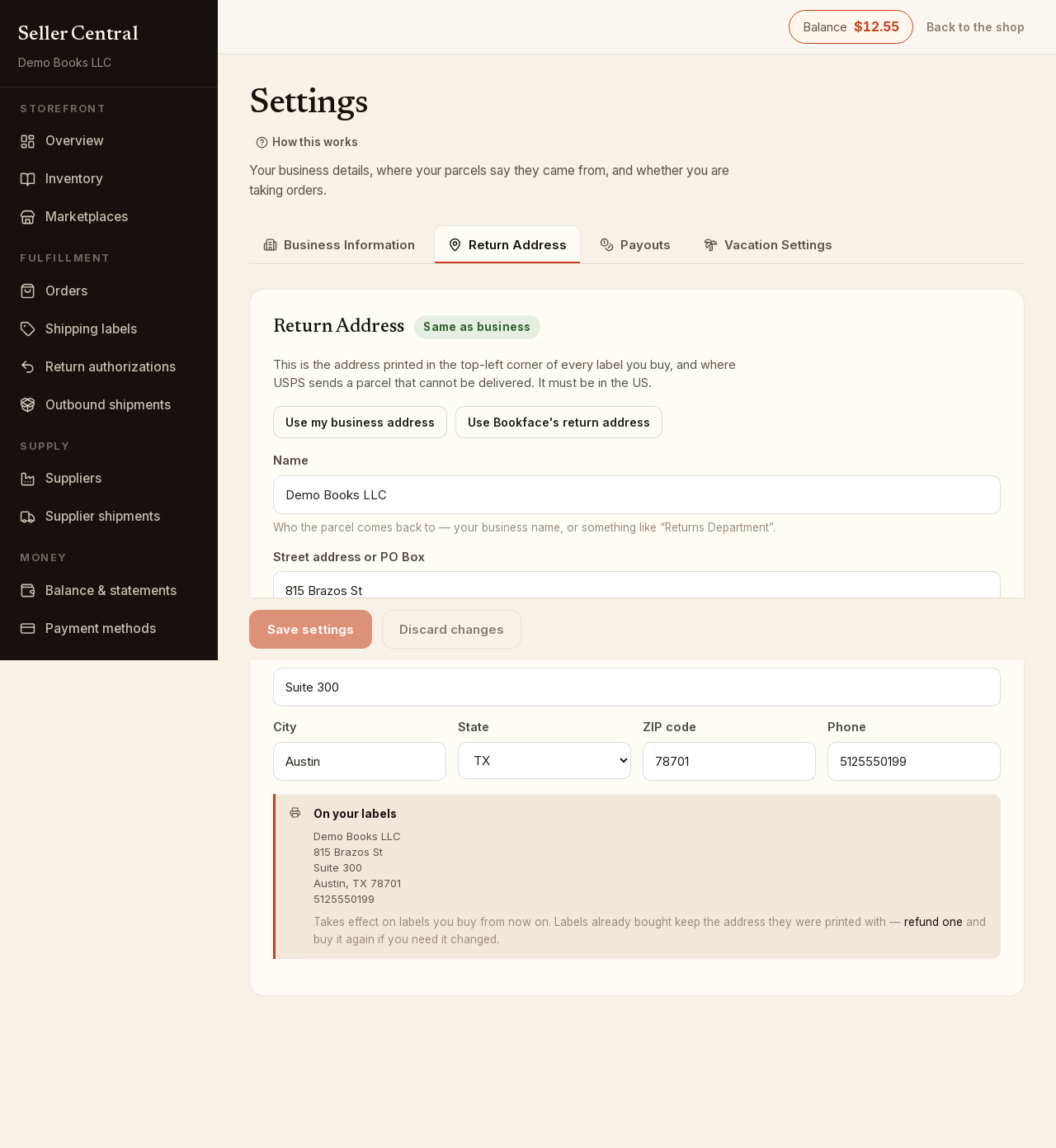
To change it:
- Open the Return Address tab.
- Use a quick pick or type an address:
- Use my business address copies your business address into the form (offered only when your business address is in the US). Click Save settings afterwards.
- Use Bookface's return address applies at once and confirms with Saved. New labels will show Bookface's return address.
- Or fill in Name, Street address or PO Box, Suite, unit, floor (optional), City, State, ZIP code and Phone, then click Save settings.
- Check the On your labels preview, which shows the address exactly as it will print.
The new address applies to labels you buy from now on. A label already bought keeps the address it was printed with; refund it under Shipping labels and buy it again if it needs to change.
Payouts
Your statement closes on the 1st and the 15th, and what it shows as payable is sent to the payout method marked Pay me here. A bank account is entered once and shown only by its last four digits. Without a method on file your statements still close, but no payment is created. See balance and statements.
Vacation Settings
Tick I am on vacation — pause my listings and save to stop your listings being offered for sale. Your inventory and prices stay exactly as they are, and orders placed before you paused still need shipping. The badge reads Listings paused while the setting is on and Selling otherwise.