
Import inventory from a file
Upload an Amazon, AbeBooks, eBay or Bookface CSV file, check the preview, then import the rows that are ready.
Open Inventory and click Import a file, or go to /seller/inventory/import. The import runs in three steps on one page, and nothing is written until you confirm the preview.
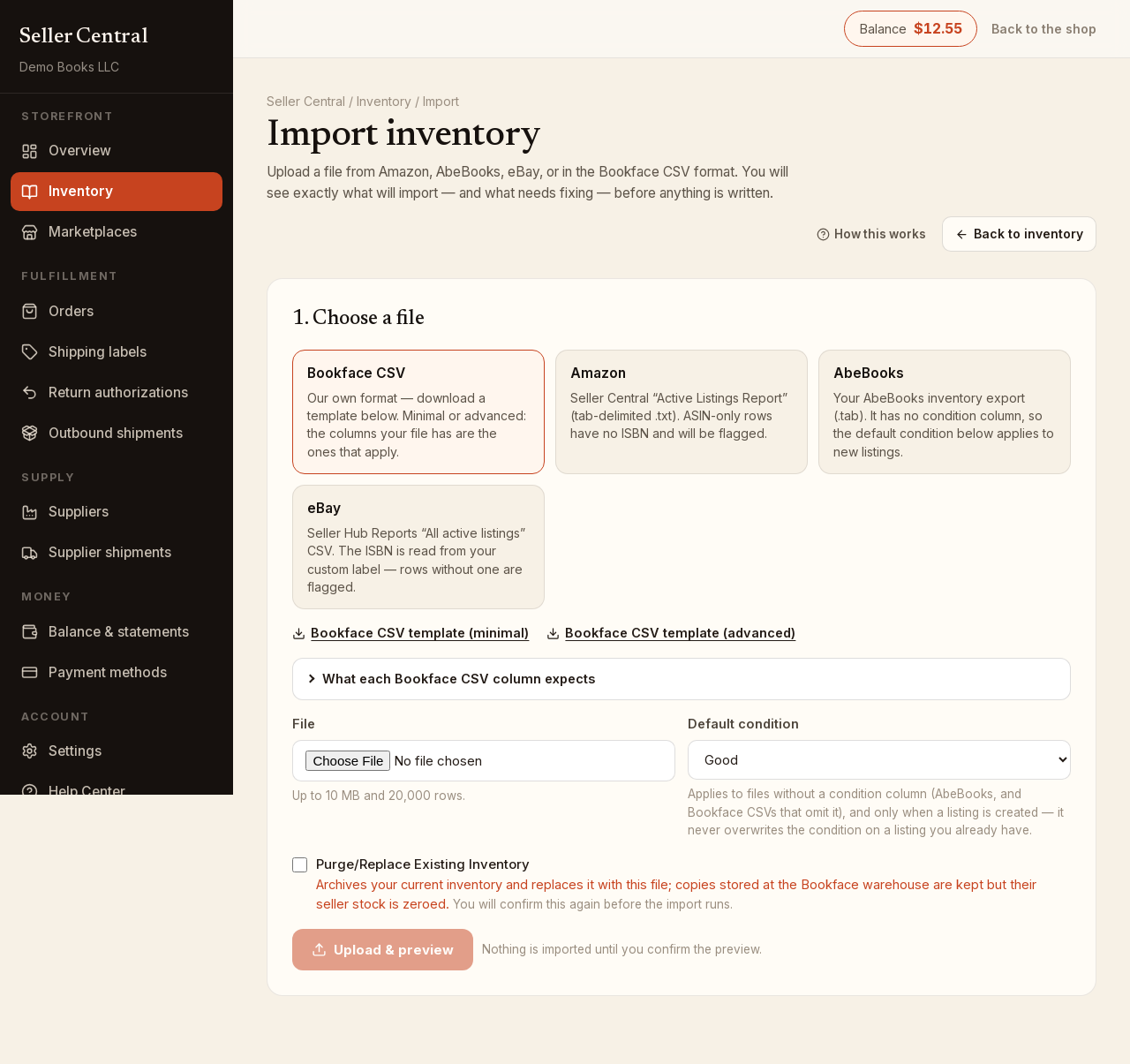
1. Choose a file
- Pick the file format: Bookface CSV, Amazon (the Seller Central "Active Listings Report", tab-delimited .txt), AbeBooks (your AbeBooks inventory export, .tab) or eBay (Seller Hub Reports "All active listings" CSV, with the ISBN read from your custom label).
- For our own format, download Bookface CSV template (minimal) or Bookface CSV template (advanced). The minimal columns are
sku,isbn,condition,price,quantityanddescription; the advanced template adds cost price, discount, markup, price limits, required stock, lead time, the international-edition and shipping flags, stop ordering and internal notes. Only the columns in your file apply; open What each Bookface CSV column expects for the full dictionary. - Choose the File. Up to 10 MB and 20,000 rows; .csv, .txt, .tab and .tsv are accepted.
- Set the Default condition. It applies only when a listing is created from a row without a condition (AbeBooks files, and Bookface CSVs that omit the column). It never overwrites the condition on a listing you already have.
- Leave Purge/Replace Existing Inventory unticked unless you want the file to replace everything you list. With it ticked, your current listings are archived and the file becomes your inventory; copies stored at the Bookface warehouse are kept, but their seller stock is set to 0.
- Click Upload & preview.
2. Preview
The preview shows Rows in file, Ready to import and With problems.
Lines with problems are listed first with the Line, SKU, ISBN and the Problems found — a wrong ISBN check digit, an unrecognized condition, a SKU repeated in the file, a SKU already used with a different ISBN, an Amazon row with an ASIN but no ISBN. Those lines will not import. Fix them and click Choose a different file, or import the ready rows without them.
Click N rows ready to import to see the rows that will go in, with SKU, ISBN-13, title, condition, price and quantity. A SKU you already list updates that listing from the file's columns; a new SKU creates a listing.
If Purge/Replace is on, type REPLACE in the box to confirm. Then click Import N books.
3. Done
The result shows Created and Updated, and with a purge, Archived by purge and Seller stock zeroed. If any row could not be written after all, it is listed with its line, SKU and reason. Click Back to inventory or Import another file.
Notes
- Prices in the file are Bookface prices in US dollars. A price of 0 is accepted; the listing exists but is not offered for sale until you price it.
- A quantity of 0 keeps the listing with nothing to sell.
- A book not yet in our catalog is added from its ISBN and
titlecolumn.