
Find a book
Search by title, author or ISBN, read the results, and open a book page.
Every page has a search box in the header. There is no catalog to page through; you type what you are looking for and the results come from that.
Search
- Click the search box at the top of any page. Its placeholder reads Search by title, author, or ISBN.
- Type a title, an author's name, or the ISBN printed on the back cover near the barcode.
- Press Enter or click Search.
You can also open /browse, which shows the same search box under the heading Find a book when you arrive without a search term.
Tips for better results
- ISBN search is exact. Type the 10- or 13-digit number from the back cover; spaces and hyphens are fine. This is the surest way to find the exact edition your course lists.
- For a title, type the full title rather than a fragment.
- If nothing matches, the page says so and suggests trying the full title, the author's name, or the ISBN.
Reading the results
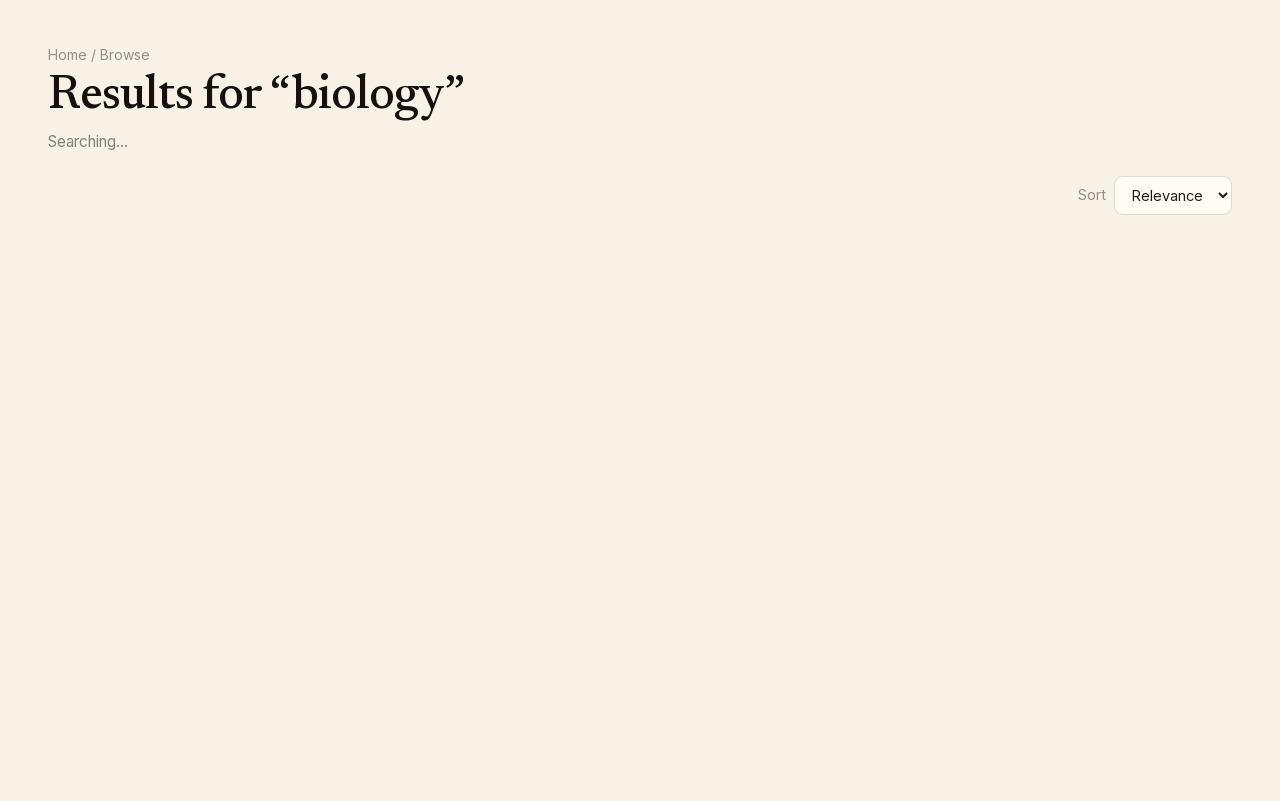
The heading reads Results for "your term" and the line under it shows the number of results. Each card shows the cover, title, author and format, and:
- N copies available — how many copies sellers currently have.
- rentable — the book can be rented; Rent from $x appears when a rental price is available.
- N sellers — how many sellers offer it.
Prices for buying are on the book page, not on the cards.
Sort and paging
- Use Sort to switch between Relevance and Title A–Z.
- Use ← Previous and Next → above or below the grid to move between pages. Very broad searches are capped; narrow the term if you see a + after the result count.
Open a book
Click a card to open the book page. Its address is always /book/ followed by the ISBN-13 and the title, so you can bookmark or share it. See The book page.