
Find and read course materials
Search the library by school, course, or topic, preview the first page of anything, and open it in the reader.
Course materials are notes, study guides, handouts and practice sets shared by students and filed by school and course. Anyone can browse; reading takes a Bookface account.
Search the library
- Open Course materials.
- In Institution, start typing your school's name and pick it from the list.
- In Course, type the course code or title and pick the course. This field is off until you have chosen an institution.
- To search by subject instead, type in Topic or keyword and click Search. Clear removes the keyword again.
- Use the chips under the search bar to narrow by kind: Notes, Summary, Study guide, Practice problems, Flashcards, Lab report, Essay, Handout, Slides, Worksheet or Other. All kinds shows everything.
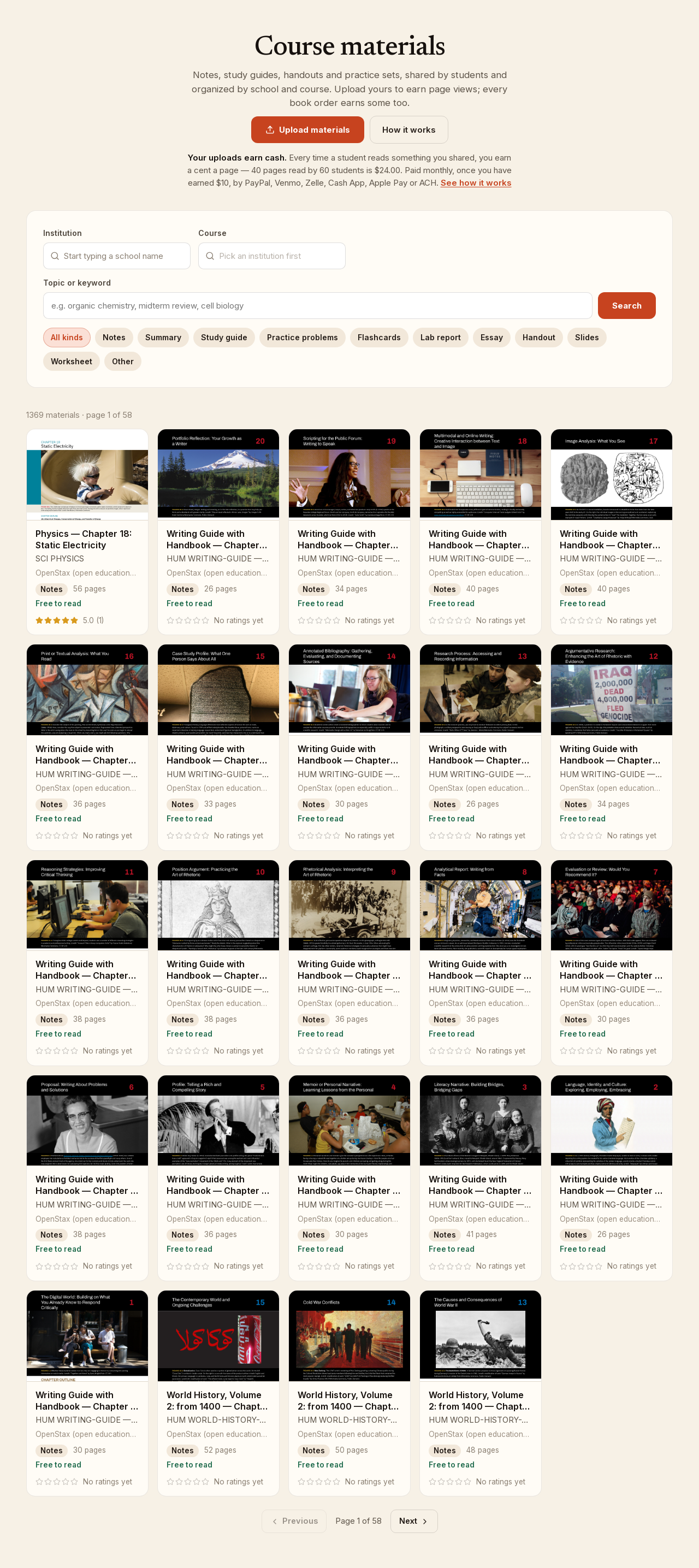
Each result shows the first page, the title, the course, the school, the kind, the page count and the rating. When there are more than 24 results, Previous and Next page through them.
Browse by school
Click a school's name in the Browsing line, or open a school's own page, to see what is filed there. The page lists Departments where the school has them, then Courses (or All courses) with a Filter courses box, and Materials at that school with a Search within this institution box. A course page shows Textbooks for this course, with links into the bookstore, and the Materials for that course.
Read a material
- Open a material. You see Page 1 preview, the kind, the page count, how many reads it has, when it was added, its rating, and the course and school it belongs to. If the document carries its own properties, they are listed under Document properties (as uploaded).
- Under Read this material, click Read. If you are not signed in, click Sign in to read first.
- Reading uses page views equal to the material's page count, once. The button tells you how many it will use and how many you have. Something you have already opened, or that is marked Free to read, costs nothing. If you are short, the page offers three ways to get more page views: upload your own materials, order a book, or buy them.
- The reader opens on the page. Use the zoom buttons and Fit width, type a number in the Page box to jump, and click Close reader when you are done.
After you have read a material you can set Your rating, click Bookmark to save it, or click Report this material to tell us about a problem. Your bookmarks, reads and page views live in your account under Course materials.