
Sign in to the supplier portal
Use the email and password the seller you supply gave you to open the portal.
The supplier portal is a small console where you see which books a seller needs from you and record the shipments you send them. There is nothing to sign up for: the seller you supply creates your login and gives you the email address and password.
Sign in
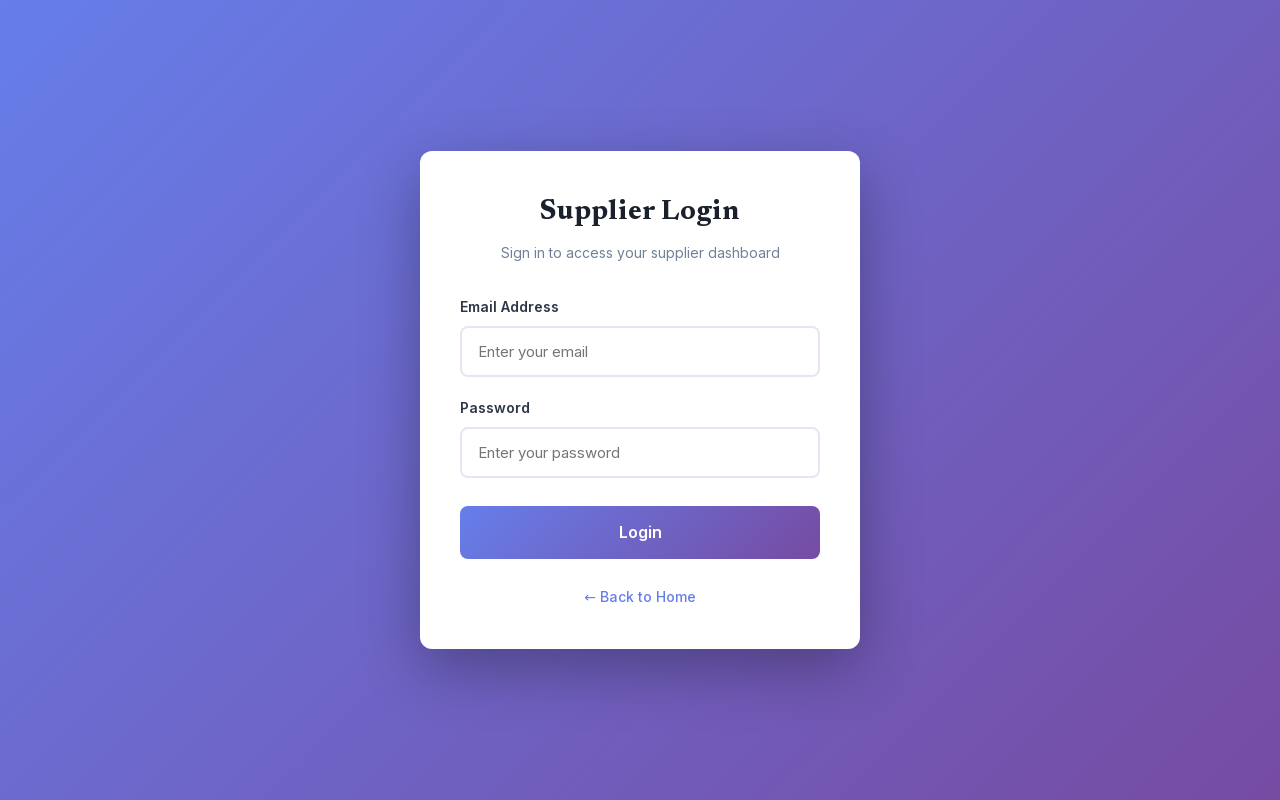
- Open Supplier Login.
- Enter your Email Address and Password.
- Click Login.
You land on Assigned inventory. The sidebar, headed Supplier Portal with your company name under it, has two pages under Supplying: Assigned inventory and Shipments. The Bookface.com link at the top right takes you to the storefront; the portal stays signed in.
Sign out
Click the log-out icon next to your name at the bottom of the sidebar. On a phone, open the menu first with the button at the top left.
If you cannot get in
- Login failed. Check the email address and password exactly as the seller gave them. The seller sets both and can change either at any time, so if you have lost your password, ask the seller for a new one. There is no reset link on this page.
- Your session has expired. Sign in again. Sessions end after a while. Sign in and you are returned to the page you were on.
- This supplier account has been suspended by the seller. Only the seller can lift a suspension; contact them directly.
- Sign in to the supplier portal. You opened a portal page without a session. Click Sign in and you come back to that page afterwards.
A supplier login belongs to one seller. If you supply more than one seller on Bookface, each gives you their own login, and you sign in to each separately.