
Edit or delete an open shipment
Change quantities and prices line by line, remove lines, update the details, or delete the whole shipment while it is still open.
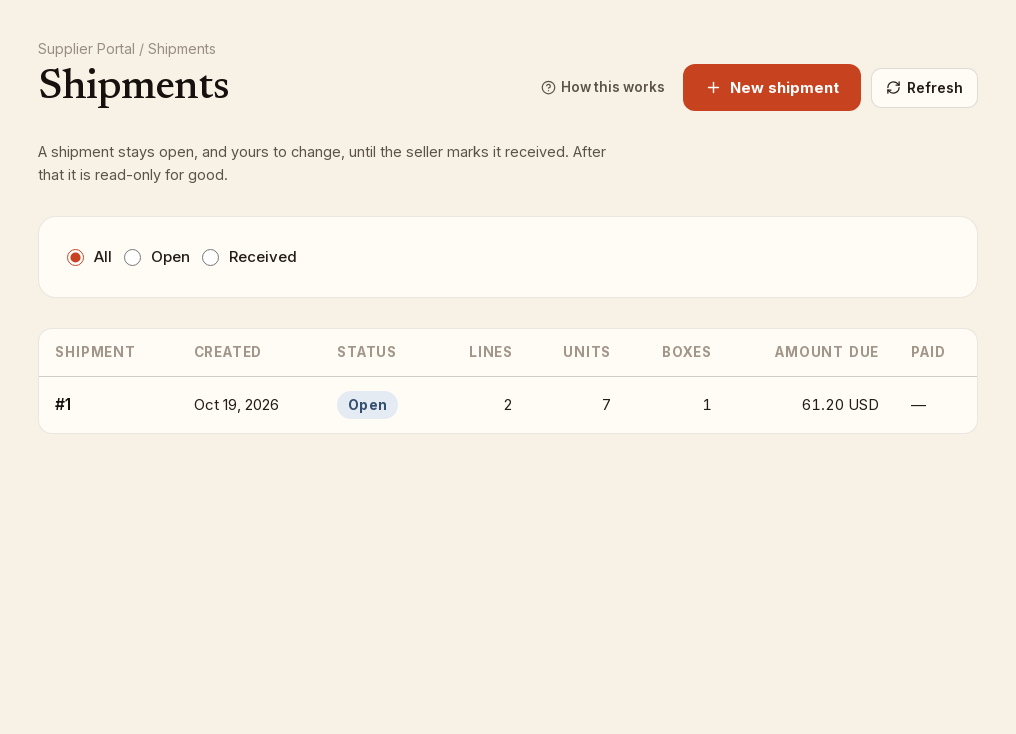
While a shipment shows the Open badge you can change anything on it. Open Shipments in the sidebar and click the shipment's number.
Change a line's quantity or price
Lines under Books on this shipment show the quantity and Price - Discount as plain text until you edit them.
- Click the pencil on the line. The quantity becomes a Quantity box, and the price becomes three inputs: Currency, Cost price and Discount percentage.
- Change what you need. Only one line can be in edit at a time.
- A Save button appears as soon as something differs from what is saved. Click it. The page confirms Saved (title).
- To back out without saving, click Cancel; the line returns to its saved values.
The quantity cap applies on edit as it does when adding: you cannot raise a line above what the seller still needs from you. The price, currency and discount are what you charge for this delivery. The seller sees any difference from the price they have on file when they receive the shipment.
Remove a line
- Click the trash icon on the line.
- In the dialog Remove (title) from this shipment?, click Remove.
The page confirms Removed (title), and the copies come back onto that book's Qty needed, so you can add it again later with a different quantity if you like.
Change the shipment details
Edit Boxes, Amount due, Currency, Shipping straight to the Bookface warehouse or Notes for the seller under Shipment details, then click Save details. These fields are not saved until you do.
Delete the shipment
- Click Delete at the top right of the shipment page.
- In the dialog Delete this shipment and every line on it? The seller will no longer see it., click Delete shipment.
You are returned to the Shipments list, and the quantities on every line go back onto the books' Qty needed. Deleting cannot be undone, but nothing stops you creating a new shipment with the same books.
When editing stops
Everything above is available only while the shipment is open. Once the seller marks it received, the page shows the Received badge, the inputs are disabled, and the pencil, trash and Delete buttons are gone. See after the seller receives it.