
See which books to send
Assigned inventory lists the books the seller needs from you right now, with the quantity and the price on file.
Assigned inventory is the portal's home page and the answer to one question: what does the seller want from you now?
Read the list
Each row is one book the seller has assigned to you and still needs copies of:
- SKU is the seller's own reference for the book. Quote it if you talk to the seller about it.
- Book shows the title, then the authors, publisher and edition, then the ISBN.
- Price - Discount is what the seller has on file for this book, in one reading: the
currency, the unit price and, when there is one, the discount, for example
USD 42 - 30%. - Qty needed is how many copies the seller wants from you. It already allows for copies you have put on an open shipment, so it is also the most you can add to a new one.
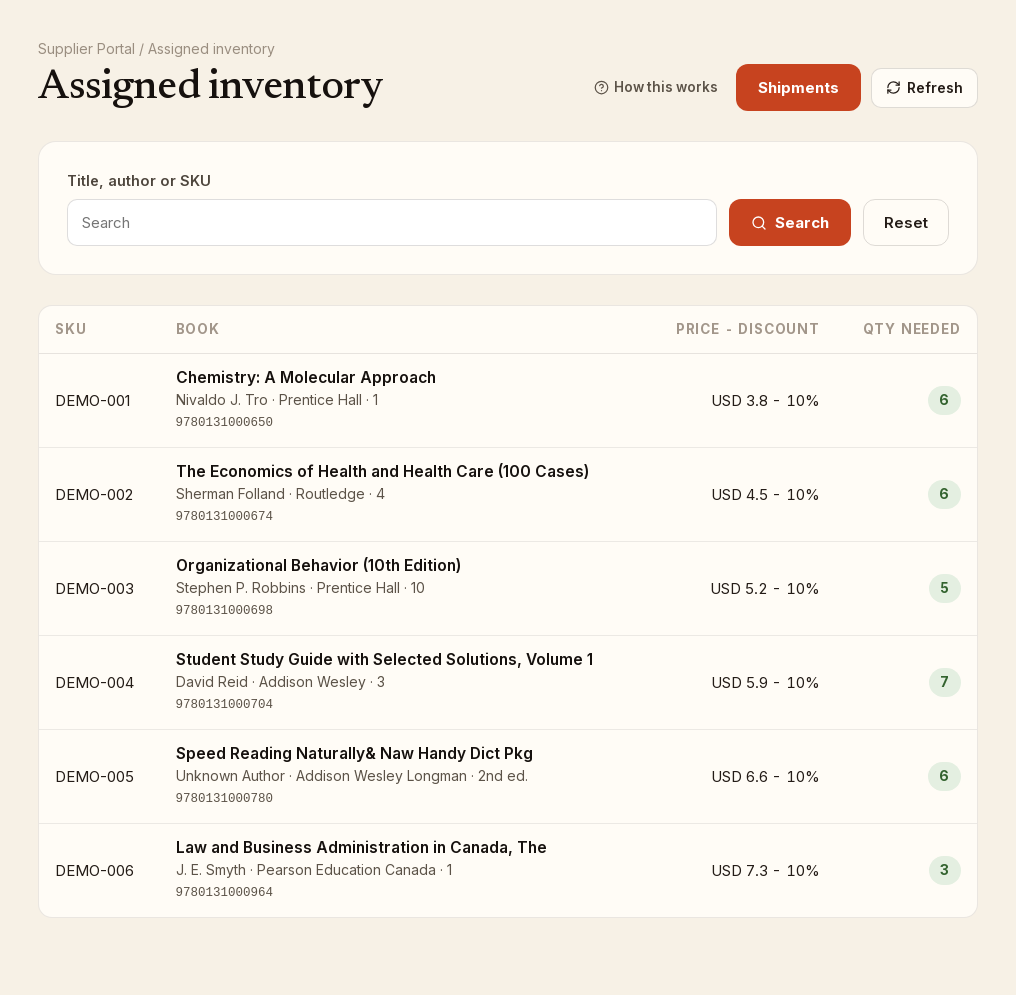
By default the list holds only books with a Qty needed above zero. When the seller needs nothing, the page says Nothing needed right now. Click Refresh to pick up changes the seller has made since you opened the page.
Long lists are paged, 50 books at a time; use Previous and Next at the bottom.
Find a book
- Type part of a title, an author's name or a SKU in Title, author or SKU.
- Click Search.
A search shows every assigned book that matches, including those with a Qty needed of 0, so you can check a price or confirm a book is assigned to you even when nothing is wanted. Click Reset to go back to the default list. Books that are not assigned to you never appear.
What you do not see
The portal shows only your side: the quantity the seller wants from you and the price on file. The seller's own stock levels and requirement figures are not shown.
When you are ready to send, click Shipments at the top of the page and create a shipment.