
Sign in and the emailed access link
How to sign in, and how one emailed link covers a forgotten password, a first password, and finishing a guest upload account.
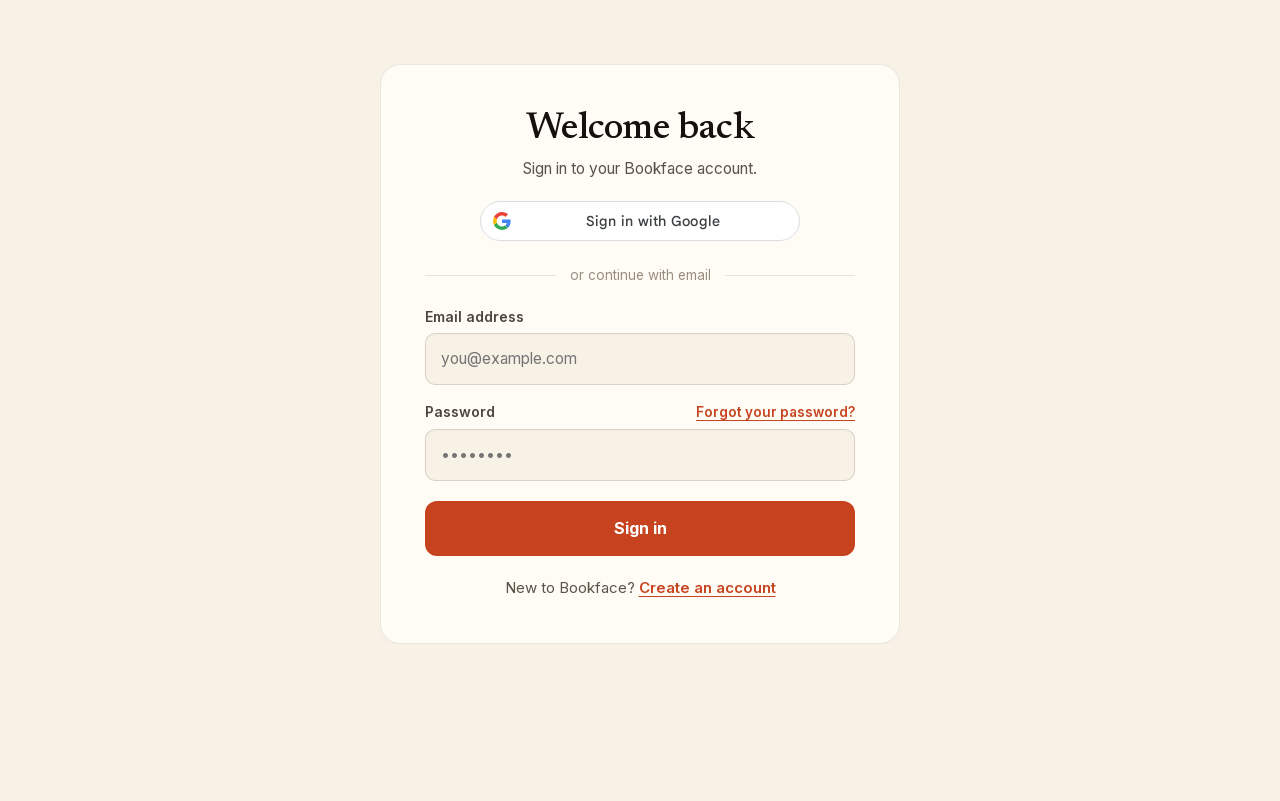
Sign in
- Click Log in at the top right of any page.
- Click the Google button, or enter your Email address and Password and click Sign in.
- You land on your account dashboard. If you were in the middle of checkout, you go back there.
Once you are signed in, the same spot in the header reads My account.
When you cannot get in
Three situations are handled by one emailed link: you forgot your password, your account has no password yet (for example, you only ever signed in with Google), or you uploaded course materials with just an email address and never set up the account.
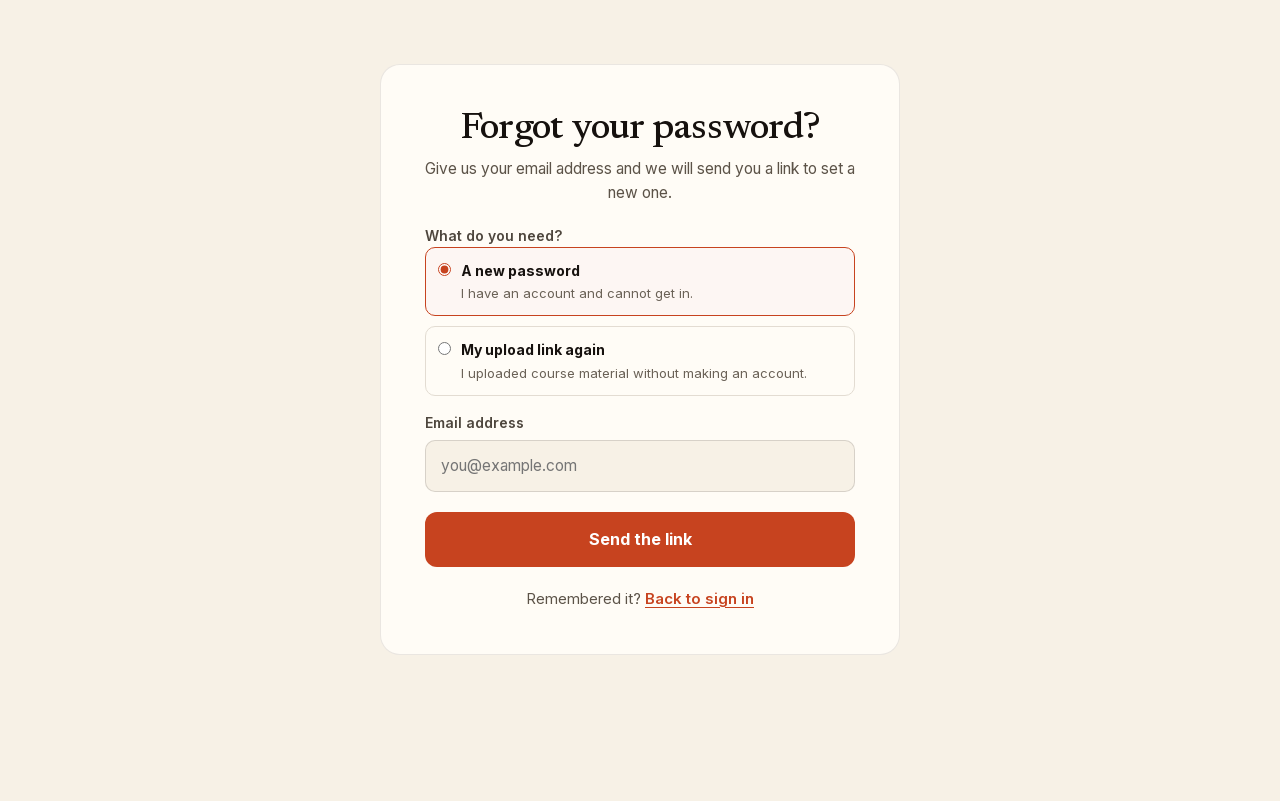
- On the sign-in page, click Forgot your password?
- Under What do you need? choose:
- A new password if you have an account and cannot get in.
- My upload link again if you uploaded course material without making an account.
- Enter your Email address and click Send the link.
- The page says Check your email. Open the message and click the link.
- Choose a password and click Save password (or Save password and continue for an upload account). You are signed in straight away.
Good to know
- A password link works for one hour and can only be used once. An upload link works for thirty days; the page views on your uploads do not expire even if the link does.
- The confirmation is the same whether or not the address has an account, so nothing is revealed about other people's accounts. If nothing arrives, check your spam folder.
- If the link page says That link no longer works, click Send me a new link and ask again.
- If your account can sign in with Google, the password page tells you so; you can keep using Google and skip the password.
- Asking for too many links in a short time pauses requests for a while. Wait, or write to support@bookface.com.
Still have a question?