
Upload your notes
Share notes, study guides or handouts for a course with just an email address, and claim what they earn later.
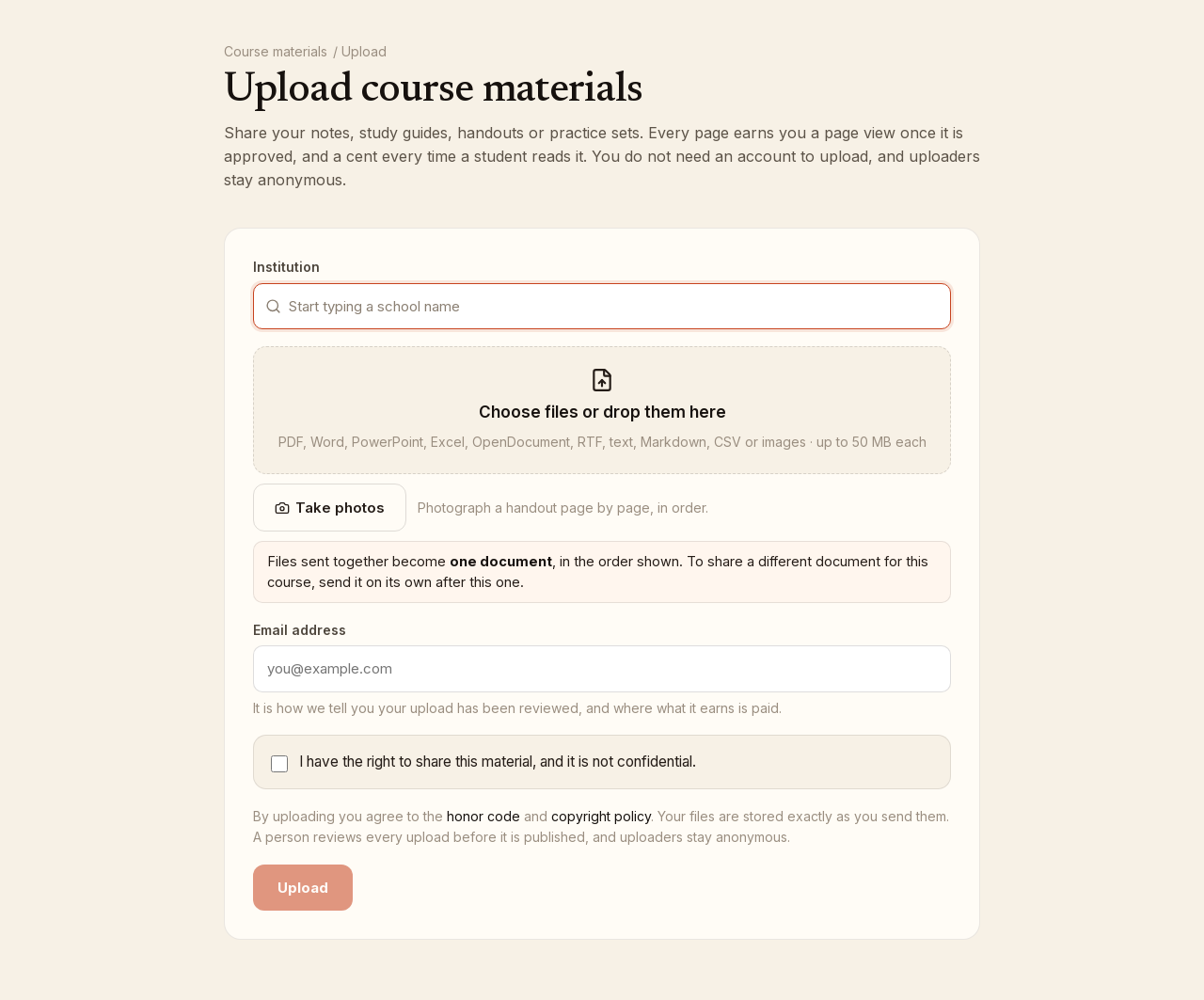
You do not need an account to upload. The form asks for the school, the course, the files, an email address if you are not signed in, and one confirmation. Uploaders stay anonymous.
Upload a document
- Click Upload your notes or Upload materials anywhere on the site, or open Upload course materials. From a school or course page, the form arrives with that school or course already filled in.
- In Institution, start typing your school's name and pick it. If it is not in the list, keep typing and click Use "your school's name".
- In Course at (your school), type the course code the way your school writes it, for
example
PSYCH 110, and pick a match or click Use "what you typed". Three characters or more. - Click Choose files or drop them here, or on a phone click Take photos to photograph a handout page by page. PDF, Word, PowerPoint, Excel, OpenDocument, RTF, text, Markdown, CSV and images are accepted, up to 50 MB each.
- Files sent together become one document, in the order shown. Use the up and down arrows to reorder and the X to remove one. To share a different document for the same course, send it on its own afterwards.
- If you are not signed in, enter your Email address. The form repeats it back so you can check it: everything the upload earns goes there. Signed in, the form shows Uploading as your email.
- Check I have the right to share this material, and it is not confidential.
- Click Upload (or Upload N files as one document).
What happens next
The Thank you screen confirms which course and school the document is filed under. A person reads every upload before it is published. From here you can Upload another for this course, open My uploads if you are signed in, or go back to Browse materials.
If you uploaded with an email address that has no Bookface account, we email that address a link that finishes setting up your account in one click. Follow it to see your upload and collect whatever it earns; the link waits for you. If the address already has an account, the upload is filed under it, and you can Sign in to follow it.
Until then, the Course materials and Upload pages show You have an upload waiting to be reviewed, with the address it was filed under. Click Send it again if the email has not arrived.
Rules in brief
Your file is stored exactly as you send it; we never change it. Upload only what you have the right to share and nothing confidential. See the honor code.