
Your addresses
Add, edit and remove the shipping addresses you pick from at checkout.
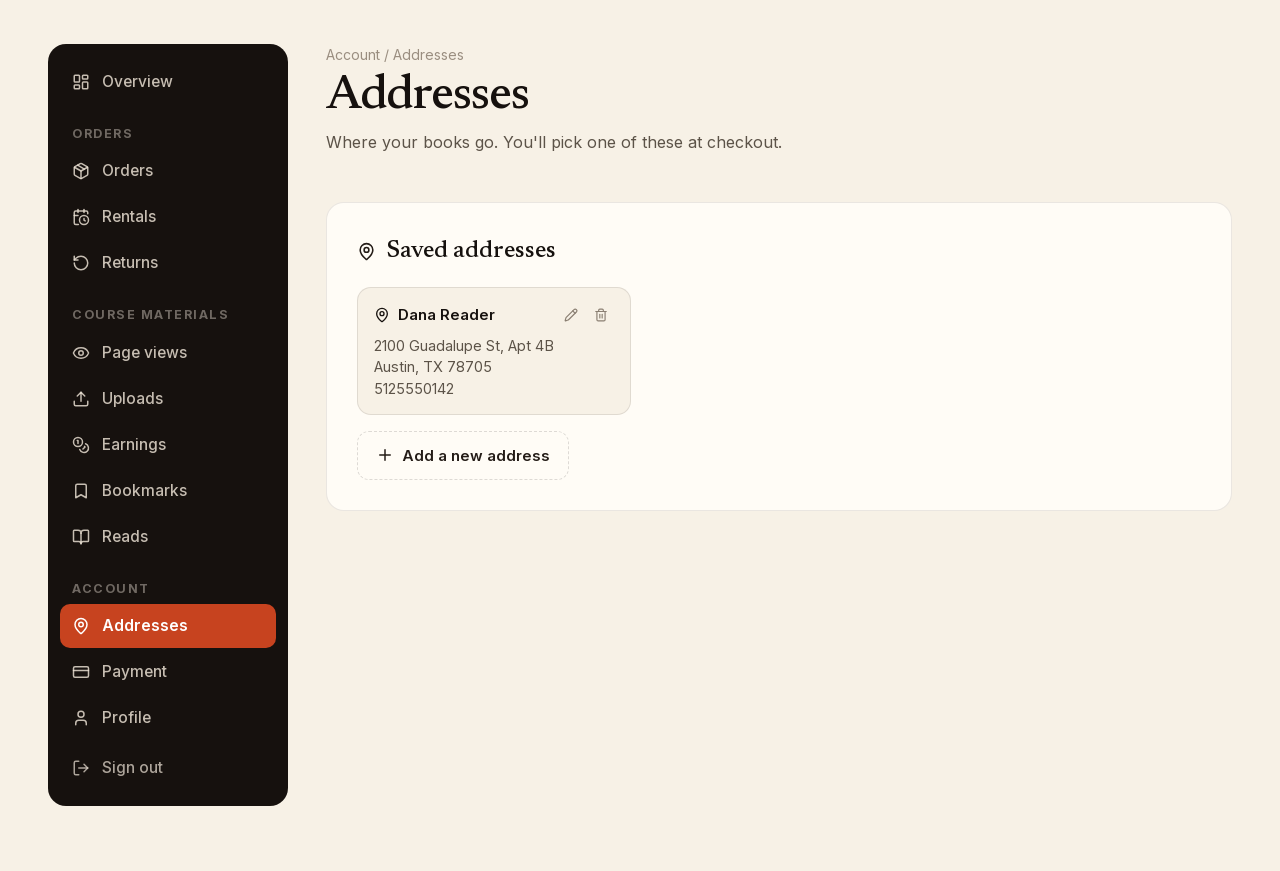
Your saved addresses are where your books are sent. You pick one of them at checkout, and you can manage them any time from your account.
Where to find them
- Sign in and click My account.
- Under Account in the left-hand menu, click Addresses.
Add an address
- Click Add a new address.
- Fill in First name, Last name, Street address, Apartment, suite (optional), City, State, ZIP code and Phone. The phone number is 10 digits and is required because it goes on the shipping label.
- Click Save address.
The name on the address is the name that goes on the package, so use the recipient's name if the books are going to someone else.
Confirming the address with USPS
When you save, the address is checked against USPS.
- If USPS writes it differently, you see You entered beside USPS standard. Click Use this address to save the USPS version, or Edit to change what you typed. The USPS version is what is saved and printed on the label.
- If USPS says the building has units and you did not give one, you are asked Does this address need an apartment or suite number? Type the unit and click Add it and save, or click No unit needed, save.
- If nothing changed, the address saves without a prompt.
Edit or remove an address
- Click the pencil icon on the address card, change the fields and click Update address.
- Click the trash icon, then Yes, remove to confirm.
At checkout
The same addresses appear under Shipping address at checkout, with the same Add a new address button, so you can add one while you order. See Cart and checkout.
Still have a question?